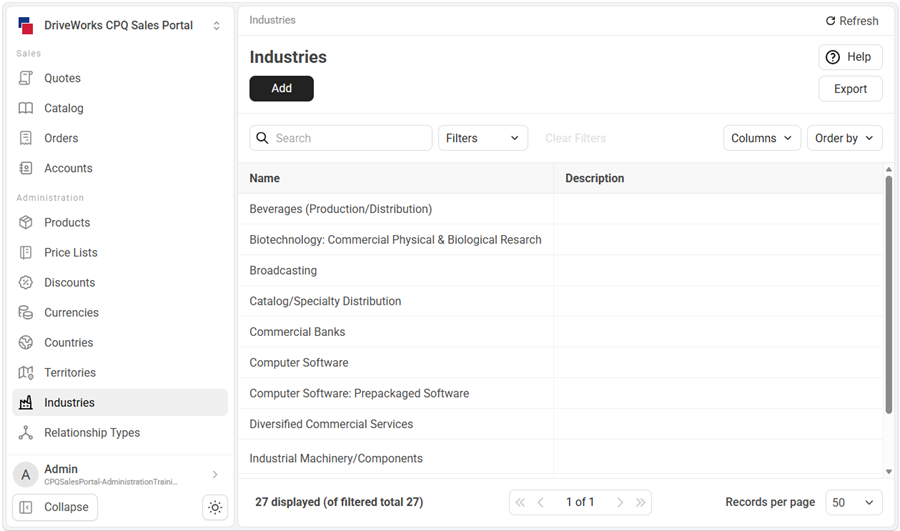
Supported Versions
SOLIDWORKS
SOLIDWORKS 2024, 2025 and 2026 are fully supported.
Microsoft Windows
Microsoft Windows 11 is fully supported.
Microsoft Windows Server 2019, 2022 and 2025 are fully supported.
Continual development to support the management of an enterprise wide deployment.
Permission Based Security
A new security model is available that offers a more scalable solution to how access is granted for users of an implementation.
This model allows more granular permissions to be applied.
This is applied in Security Settings, where:
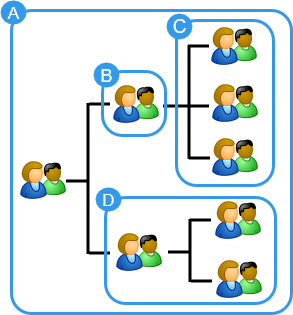
- Teams can have hierarchy (parent-child relationships)
- Teams give access to selected projects in the group.
- Roles are created and applied to teams and/or users
- Roles define the permissions
A Permission targets a securable feature to apply an action and scope.
A securable feature is typically the project but can also include business objects when using DriveWorks CPQ Sales Portal
Projects can have specify and update actions, business objects will have many others.
Scope defines where the permission is allowed in the Team hierarchy, for example:
- Anywhere
- Team
- Team's Descendants
- Team and Descendants
Learn moreSpecification Upgrade
Specifications created from an older version of a project can be upgraded to the latest version through DriveWorks Data Management.
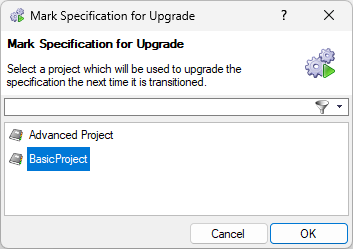
The following specification tasks assist with upgrading a specification:
Learn moreLaunching Autopilot from a Command Line
When launching DriveWorks Autopilot from command line arguments additional parameters can be applied to control the filters and verbosity applied to the Autopilot log.
The logging verbosity and filters appear in the command bar of the Autopilot view as shown in the image below.

Controlling these when starting DriveWorks Autopilot from command line arguments will toggle the buttons on or off as desired.
For example to turn each parameter off include the following within the command line script:
- /VerboseLogging:False
- /HideInformation:False
- /HideSuccessful:False
- /HideWarnings:False
- /HideErrors:False
Learn moreColor Scheme Awareness
When running an implementation in a browser (using the Integration Theme in DriveWorks Live) users have the ability to choose a Light or Dark Color Scheme.
Designing user forms to be color scheme aware is now possible with the following new features.
Form Container Color Scheme
New Special Variable - Form Container Color Scheme
DriveWorks is aware of the chosen color scheme and reports this to the special variable Form Container Color Scheme.
This allows the color scheme choice to be considered when designing the UI.
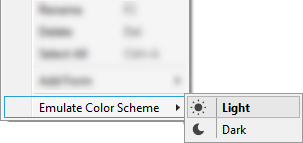
Emulate Color Scheme
Designing user forms to adapt to browser color scheme changes is possible by emulating light and dark color schemes.
Instantly see how a user form will appear in each mode and adapt the UI to respond to color scheme changes.
Learn moreURL Awareness
New features to make DriveWorks URL aware and give more control over Single Page Applications.
Update Current Browser Address
New Specification Task - Update Current Browser Address
This task allows the current URL to be updated without triggering a page reload.
When updating content in Single Page Applications this can be used to store values to the URL.
For example, the parameters applied to filter a data table can be stored in the URL.
Current Client URL
New Special Variable - Current Client URL
When running a specification in a browser the URL is reported to the special variable Current Client URL.
Use in conjunction with the Update Current Browser Address task to read the values stored in the URL when updating content in a Single Page Application.
Navigate to URL
New Specification Task - Navigate to URL
This task will navigate to the given URL.
Designed to be run from a Macro Button where other tasks can run simultaneously (unlike the Hyperlink control).
The URL can open in a new window (which will happen when clicked from a specification run from a desktop application regardless of this option being applied).
Integration Theme - Grid View
Users of the Integration Theme can toggle the view between a list or grid view on the specification history page.
Displaying historical specifications in a Grid will display the Name, State and Last Edited date of each specification on a tile.
Expanding a tile will reveal further specification properties for that specification.
All specifications can be filtered and sorted while in Grid View.
Learn moreIntegration Theme - Loading Indicator
The default loading indicator, displayed when a page is loading, can have a custom image applied.

An image can be applied for both Light and Dark mode settings.
We recommend using an image size of 32px x 32px.
All common image formats are supported.
Learn moreIntegration Theme - Show/Hide Archived Specifications
Archived specifications can be toggled to be displayed or hidden from the specification history page.
Learn moreImprovements to make interactive 3D visualizations, for the desktop and web, realistic and performant
Show Replaced Content
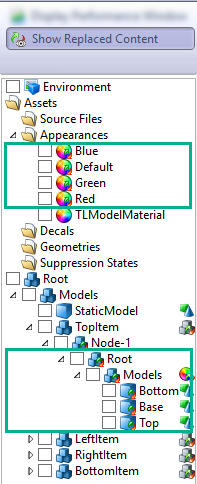
Allows the content of models that will replace existing nodes to be inspected directly in the document.
When any node has a Replace Model or Document Replacer entity applied all content brought into the scene can be displayed in the feature panel when this button is clicked.
This is also available from the 3D Previews tab of Specification Test Mode.
The content that can be inspected includes:
- Assets applied to the model (appearances and decals).
- The tree structure of the replacing model.
- All rules applied to any asset or node in the model.
Show replaced content displays all content from models replaced in the scene.
World Position Textures
Appearances can use a world position to accurately project a texture over multiple geometries.
- Allow seamless texturing over multiple models
- Texture mapping relates to position, not model texture coordinates
- Straightforward to apply, removes the need for additional calculations
- Use to set up background scenes or rooms and apply materials to changeable geometries easily
World Position Textures enabled
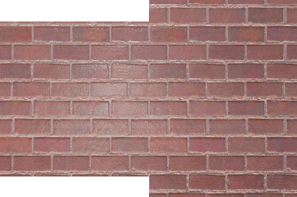
Enabling World Position Textures allows the same texture to flow into geometries with a different size without the need for complex calculations to scale the texture.
World Position Textures disabled
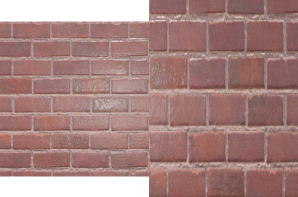
Without World Position Textures Enabled, the same textured appearance applied to multiple geometries does not flow seamlessly when one of the geometries differs in size.
World Position Textures is available for each Render Property:
Drag Entity
The Drag entity allows a model to be moved and positioned within a scene in a 3D Preview control, using mouse or touch input.
Optionally set a drag surface to confine the drag to a specified area.
Further enhance the drag experience by applying a macro to control other features, such as highlighting the area the object can be dragged onto.
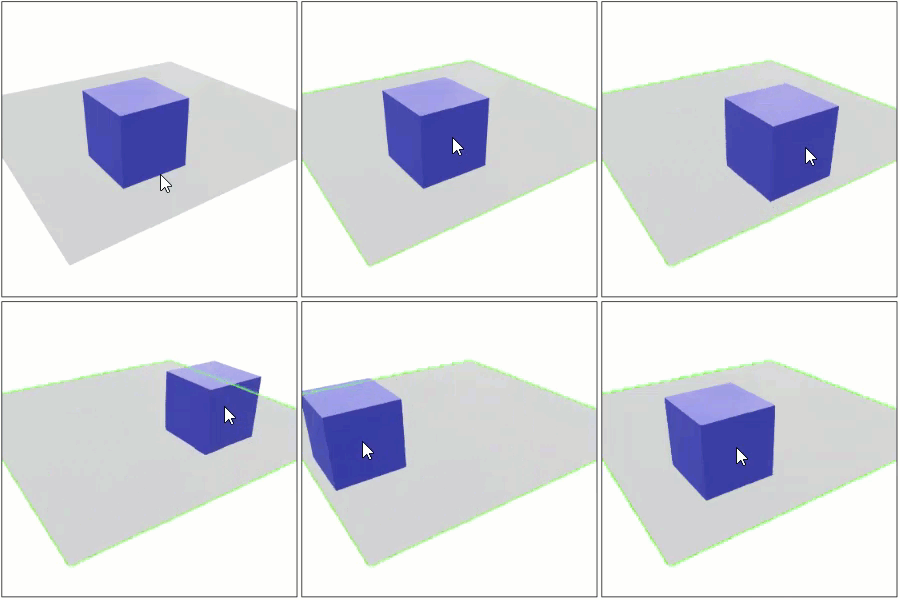
Apply custom camera views to allow models to be dragged from one view to the other.
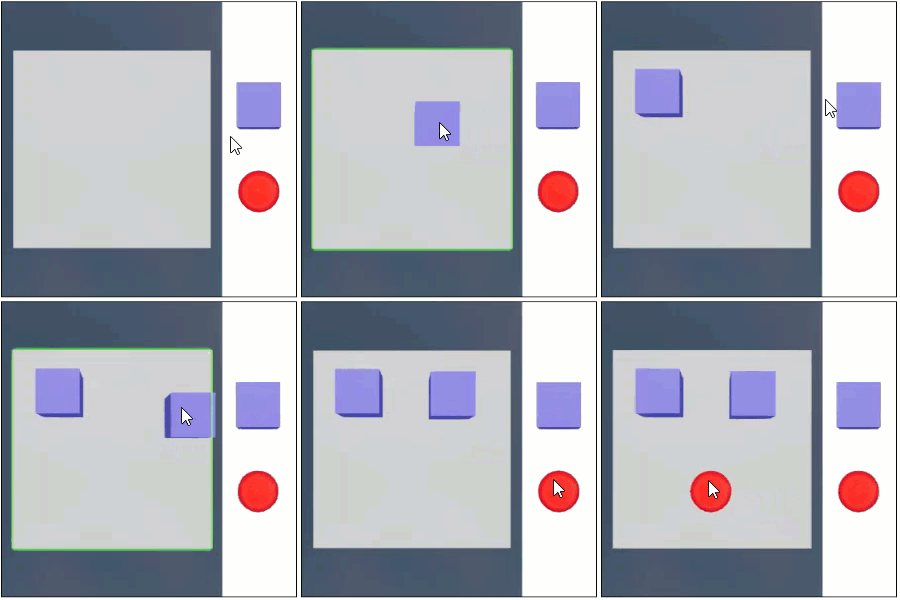
Learn moreSub-Surface Scattering
Materials that allow light to pass through while scattering it can have translucency transmission settings applied with the PBR Advanced render property.
Key points:
- Translucent material support.
- Real-world visual accuracy.
- Effect is made up of two components:
- Translucency as light filters through from behind.
- Soft diffusion of lighting from front.
- Uses a new volumetric rendering technology.
Sub-surface scattering gives realistic results for plastics, textiles and organic materials.
The effect becomes apparent when a light source is placed behind the translucent material and filters through allowing objects in between to be seen.
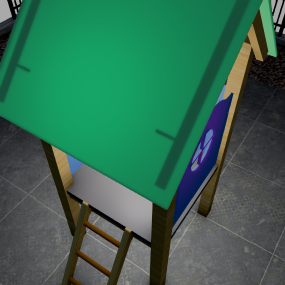
Translucency On
The translucent material (playhouse roof) allows light placed behind the material to pass through.
Objects in between the light and translucent material can also be seen.
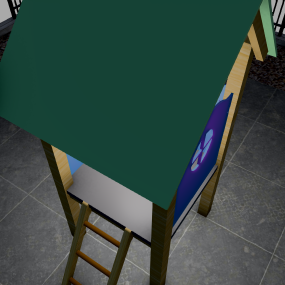
Translucency Off
The light source is still on but the light and objects behind can no longer be seen.
Screen Space Reflections
Screen space reflections are available in the PBR Advanced render property.
Screen space reflections allow objects within a scene to be reflected off surfaces that have reflective materials and coatings applied.
Key points:
- Optional Screen Space Reflection check box for the PBR Advanced render property.
- Complete parity with existing reflective render properties.
- Easy to apply and set up to obtain realistic results.
- Roughness textures and SSR work alongside each other, no extra parameters.
Screen space reflections are perfect for using with reflective materials, coatings, water, puddles, etc.
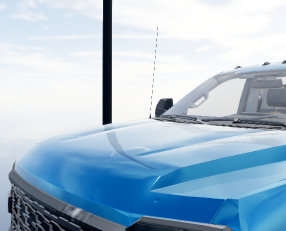
Screen Space Reflection Enabled
The post is reflected in the paintwork of the vehicle body.
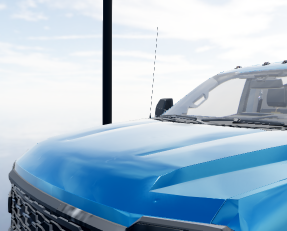
Screen Space Reflection Disabled
No objects are reflected in the paintwork of the vehicle body.
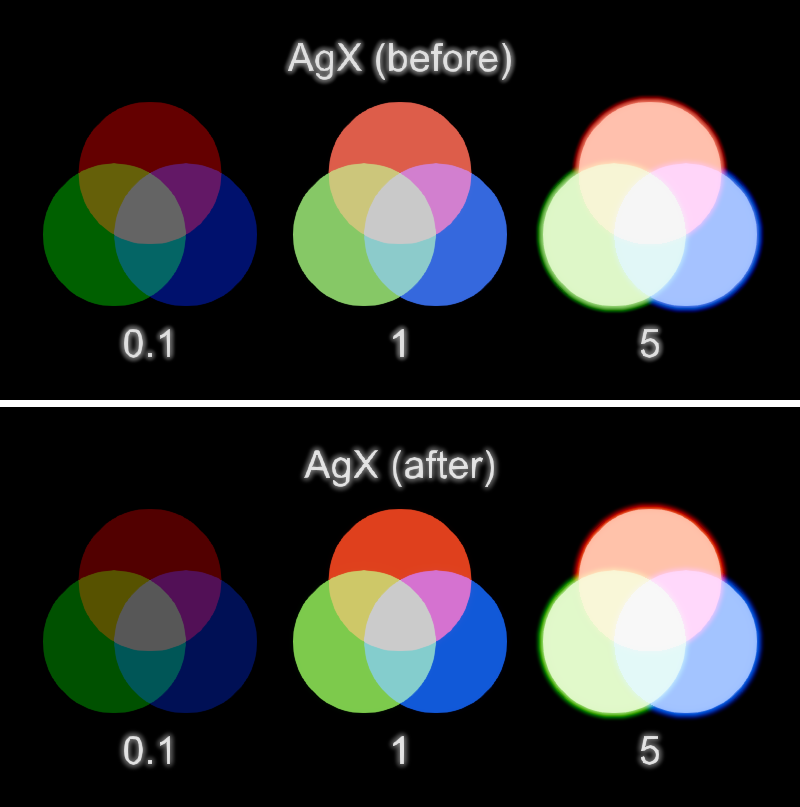
AgX Tonemapping
Color Adjustments applied in the Environment settings can benefit from an improved tonemapper for the AgX tone mapping type.
The new implementation of the AgX tonemapper includes:
- Improved contrast and saturation
- Improved performance
 Learn more
3D Appearance Tasks
Dynamically add and remove decals and appearances from a scene displayed in a 3D Preview control.
The following new 3D tasks allow Appearances and Decals to be removed and duplicated from a DriveWorks 3D document.
Duplicate Document Decal
Will duplicate a decal in the DriveWorks 3D Document displayed in a 3D Preview control.
Duplicate Document Decal
Delete Document Decal
Will delete a decal from the DriveWorks 3D Document displayed in a 3D Preview control.
Delete Document Decal
Duplicate Document Appearance
Will duplicate an appearance in the DriveWorks 3D Document displayed in a 3D Preview control.
Duplicate Document Appearance
Delete Document Appearance
Will delete an appearance from the DriveWorks 3D Document displayed in a 3D Preview control.
Delete Document Appearance
3D Appearance Functions
New 3D Functions to retrieve information about the scene being displayed in a 3D Preview control.
PreviewGetAppearances
Returns the names of all of the appearances in the current 3D Preview Document being displayed in the supplied 3D Preview Control.
PreviewGetAppearances
PreviewGetDecals
Returns the names of all of the decals in the current 3D Preview Document being displayed in the supplied 3D Preview Control.
PreviewGetDecals
DWTouchPointHitNode
New Special Variable
The special variable DWTouchPointHitNode holds the address of the node, including children of the node that was clicked to trigger a macro execution.
This differs from the special variable DWCurrentMacroCaller, which stores the address of the node the macro is applied to.
When an entity that can run a macro is applied to a parent node its child nodes will trigger the macro.
Knowing the exact node that was clicked to trigger the macro can be helpful with further interactions in the 3D Scene.
DWTouchPointHitNode is populated from the following entities:
Invariant functions are culture insensitive, meaning the result is consistent across all browsers regardless of regional culture.
Date functions to easily convert, add or subtract date or time values to obtain an accurate timeframe.
ConvertFromUtc
Converts the provided DateTime from UTC using the provided Time Zone Identifier.
For example:
ConvertFromUtc(Now(),"America/Chicago")
Will result in 09/25/2026 04:30:00 (UTC -5) when called on September 25 2026 at 09:30 (UTC)
Learn moreConvertToUtc
Converts the provided DateTime to UTC using the provided Time Zone Identifier.
For example:
ConvertToUtc(Now(),"America/Chicago")
Will result in 09/25/2026 14:30:00 (UTC) when called on September 25 2026 at 09:30 (UTC -5 during daylight saving)
Learn moreGetTimeZones
Gets a list of IANA time zones.
For example:
GetTimeZones()
Returns a table of IANA time zones, with Etc and UTC Offset zones excluded. For example:
| ID | Display Name | Offset |
|---|
| Africa/Cairo | Egypt Standard Time | +03:00 |
| America/Chicago | Central Standard Time | -05:00 |
| Asia/Shanghai | China Standard Time | +08:00 |
| Brazil/East | E. South America Standard Time | -03:00 |
| Canada/Pacific | Pacific Standard Time | -07:00 |
| Europe/Berlin | W. Europe Standard Time | +02:00 |
| Europe/Paris | Romance Standard Time | +02:00 |
| US/Eastern | Eastern Standard Time | -04:00 |
Learn moreDateAddDays
Adds (a negative number will subtract) a specified number of days to a date value.
For example:
DateAddDays(DatePickerReturn,2)
Will add two days to the result coming from the DatePicker control.
Learn moreDateAddHours
Adds (a negative number will subtract) a specified number of hours to a date value.
For example:
DateAddHours(Now(),-8)
Will subtract eight hours from the result of the Now function.
Learn moreDateAddMilliseconds
Adds (a negative number will subtract) a specified number of milliseconds to a date value.
For example:
DateAddMilliseconds(Now(),2000)
Will add 2000 milliseconds to the result of the Now function.
Learn moreDateAddMinutes
Adds (a negative number will subtract) a specified number of minutes to a date value.
For example:
DateAddMinutes(Now(),-45)
Will subtract 45 minutes from the result of the Now function.
Learn moreDateAddMonths
Adds (a negative number will subtract) a specified number of months to a date value.
For example:
DateAddMonths(DatePicker1Return,8)
Will add eight months to the result of the Date Picker control.
Learn moreDateAddSeconds
Adds (a negative number will subtract) a specified number of seconds to a date value.
For example:
DateAddSeconds(Now(),-40)
Will subtract 40 seconds from the result of the Now function.
Learn moreDateAddWeeks
Adds (a negative number will subtract) a specified number of weeks to a date value.
For example:
DateAddWeeks(DatePicker1Return,-6)
Will subtract 6 weeks from the result of the Date Picker control.
Learn moreDateAddYears
Adds (a negative number will subtract) a specified number of years to a date value.
For example:
DateAddYears(Now(),2)
Will add two years to the result of the Now function.
Learn moreFocused updates and visual enhancements to assist with implementing DriveWorks and make more appealing user forms.
Toggle Between Recent Views
Quickly toggle between the two most recently used views in DriveWorks Administrator.
From anywhere in DriveWorks Administrator select the keyboard shortcut key:
Ctrl + [
The previous view will become active.
For example:
From Form Design navigate to Define Variables hit Ctrl + [ to toggle back to Form Design
Toggle view is disabled when any other dialog is open (for example the Rule Builder or Add Document Wizard).
Learn moreQuick Launch DriveWorks Pro Server
Quick launch DriveWorks Pro Server
From anywhere in DriveWorks Administrator select the keyboard shortcut key:
Ctrl + Alt + P
Learn moreGoTo Functionality
GoTo provides functionality to navigate directly to the macro or form declared in the corresponding property.
From the selected control (in Form Design) or form (in Form Navigation) select the keyboard shortcut key:
F12
GoTo will:
- Navigate to the specification macro declared in the Macro Name property (of a Macro Button).
- Navigate to the user form specified in the Dialog Name property (of a Dialog Button).
- Navigate to the user form specified in the Form Name property (of a Frame Control).
and when a form is selected in the Form Navigation task, GoTo will:
- Open the form in the Form Design task.
Learn moreConvert Check Box to Toggle Switch
Quickly convert a Check Box control to a Toggle Switch control.
- In Form Design, right click on the Check Box control to be converted.
- Select Convert > To ToggleSwitch
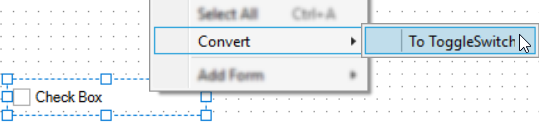
- The Check Box will convert to a Toggle Switch.
All properties common to both controls will be retained.
Learn moreText Formatting - Hyperlink Support
Styling the text that appears on form controls now support hyperlinks.
A hyperlink uses the [url] tag to open the link in the current tab of the browser (when running a specification in a browser).
Or using the [url-external] tag will open a new tab in the current browser (when running a specification in a browser).
When running a specification in a desktop application the link will be opened in a new tab of the default browser regardless of the hyperlink formatting tag used.
Hyperlinks are not supported when formatting text for the Tooltip Text property or on any button control.
Label Control - Text Property
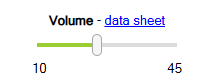
The Label control can now be more interactive, format the text property of a label to include links to product data sheets, company policies, etc.

Slider Control - Text Property
Text formatting support has also been extended to the text property of the Slider Control.
 Learn more
Text Formatting - Caption Property Support
Text formatting can now be applied to the caption property of form controls.
This includes formatting the text to display as bold, italic, underlined, color and as a hyperlink.
The caption property of the following controls also now support text formatting:
Learn moreText Formatting - Data Table Support
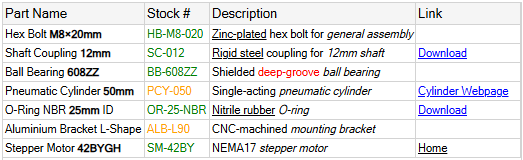
Data presented in the Data Table control support the use of formatting tags.
This includes formatting the text to display as bold, italic, underlined, color and as a hyperlink.
 Learn more
Text Formatting - Items Property Support
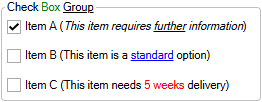
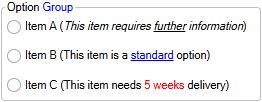
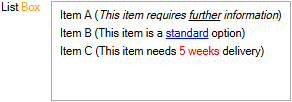
Items presented in Check Box Group, Option Group and List Box controls can benefit from text formatting tags.
This includes formatting the text to display as bold, italic, underlined, color and as a hyperlink.
Learn moreOpacity
The opacity of each control can be controlled.
Apply a value between 0 (not visible) and 100 (fully visible).
 Learn more
Group Padding
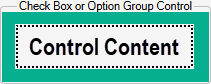
Group Padding property is available for the Check Box Group and Option Group controls.
Group Padding specifies the padding around items in the group.
Padding will control:
- The point at which line wrapping occurs when text reaches the edge.
- The offset of the check/ option from the edge.
 Learn more
Group Spacing
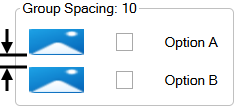
Group Spacing property is available for the Check Box Group and Option Group controls.
Group Spacing specifies the spacing between items in the group.
 Learn more
Input Spacing
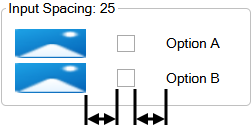
Input Spacing property is available for the Check Box Group and Option Group controls.
Specifies the spacing between the check/radio, caption and picture in terms of the group.
 Learn more
Input Icon Size
Input Icon Size property is available for the Combo Box control.
Specifies the size of the icon in the input.
 Learn more
Input Icon Margin
Input Icon Margin property is available for the Combo Box control.
Specifies the margin between the icon and the edge of the input.
 Learn more
Unit Icon Size
Unit Icon Size property is available for the Measurement Text Box control.
Specifies the size of the icon in the unit select.
 Learn more
Unit Icon Margin
Unit Icon Margin property is available for the Measurement Text Box control.
Specifies the margin between the icon and the edge of the unit select.
 Learn more
Nullable
The Spin Button control allows empty (null) values.
When the nullable property is False, and the current value of the control is removed or deleted the control will default to the value applied to the Minimum property.
When the nullable property is True, and the current value of the control is removed or deleted the control will result in an empty or null value.
Learn moreProject Template
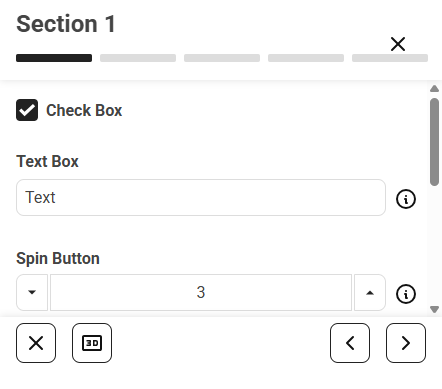
The project template User interface style 3 provides a template to match the styling of the DriveWorks CPQ Sales Portal module but it can be used to create any DriveWorks project.
It uses ProjectStyles.css to provide modern styling and animations for callouts from control information points.
 Learn more
New features and enhancements to further the Design Automation capability.
Replacement Model Dependency
Replacement models automatically create a dependency in the released model data.
This allows DriveWorks to become aware an assembly is dependent on a replacement model requiring to be generated first.
The dependency created is particularly important when the Generation Task Insert Component is used on components that will be replaced by components generated from child specifications.
Previously this could only be achieved by manually generating the model first or using Tags or Triggered Actions when using DriveWorks Autopilot.
Learn moreRun SOLIDWORKS Macro Generation Task on Post Close
The Run SOLIDWORKS Macro Generation Task can be run on the Post Close generation sequence.
The ability to run a SOLIDWORKS macro on Post Close has specific applications such as situations that require a SOLIDWORKS file to remain open in order to perform a manual verification.
DriveWorks will always close the file once it has completed generation, now a macro can run that re-opens the file to allow further manual editing.
Learn moreView Specification Report in Test Mode
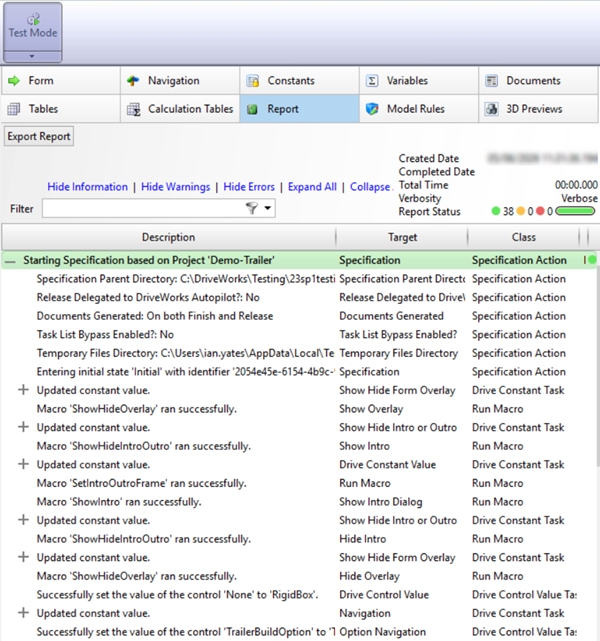
Specification Test Mode displays the report produced by the specification.
This allows detailed diagnosis of a specification and all of the actions that have been processed.
 Learn more
Insert Component
Enhanced Generation Task
The File Path property accepts the name of a captured driven component (full path and driven name is no longer needed).
Use the prefix <Insert> and the component name to insert a driven model, for example:
"<Insert>Component Name"
Use the prefix <InsertFile> and the full path and name to insert any other model, for example:
"<InsertFile>C:\Models\assy.sldasm"
The following property has been added to extend the control of the inserted component:
- Component Reference - a unique designator for each component.
Learn moreMove Rollback Bar
New Generation Task
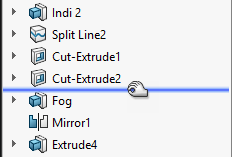
This Generation Task moves the rollback bar to the defined place in the FeatureManager Design Tree.
Use this task to perform other tasks at a specific place in the SOLIDWORKS Design Tree.
Learn moreInsert Note
New Generation Task
This Generation Task inserts a note onto a drawing.
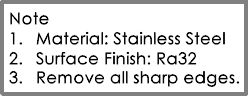
Properties for this task give control of:
- Text for the note including optional hyperlink
- X, Y Position the note will be inserted
- Rotation angle of the note
- Justification and alignment of the text
- Sheet name and layer to insert the note on
- Font height
Learn moreSet Display Style of Views
New Generation Task
This Generation Task specifies how parts or assemblies appear in drawing views.
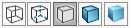
Apply display preferences for each or all views on a sheet, including:
- Display a view in Wireframe, HiddenLinesVisible, HiddenLinesRemoved, Shaded or ShadedWithEdges
- Cosmetic Thread Quality
- Edge Quality
Learn moreSet Component Properties
New Generation Task
This Generation Task sets additional properties for a component in an assembly.
The properties that can be set are:
- Component Reference - a unique designator for each component.
- Envelope - if the component is an envelope.
- Exclude From BOM - to exclude the component from the bill of materials.
- Referenced Configuration - sets the referenced configuration of the component.
- Save Assembly As Part Option - determines if the component is included when saving an assembly as a part.
- Solving State - sets if the component is rigid or flexible.
- Suppression State - determines if the component is suppressed or resolved.
- Instance Name - the instance name of the component to set the properties for.
- Fix - if the position of the component is fixed.
- Visible - if the component is visible in the graphics area.
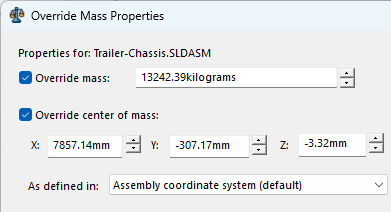
Learn moreOverride Mass Properties
New Generation Task
This Generation Task assigns values for mass and center of mass to override the calculated values.
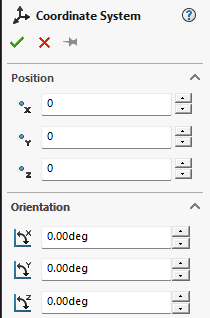
Learn moreCreate Coordinate System
New Generation Task
This Generation Task creates a coordinate system feature using numerical values for position and orientation, with respect to the global coordinate system.
Learn moreSupport for multiple vaults and Windows Authentication, new tasks and functions added to further enhance working with PDM.
Windows Authentication Support
SOLIDWORKS PDM implementations that use Windows Authentication or mixed mode to verify user identities are supported.
Enabling the Windows Authentication option (in the plugin settings) requires users to have windows authentication configured in all vaults DriveWorks has access to.
As SOLIDWORKS PDM plugin settings are user specific, each user can have their own setting, for example:
- DriveWorks Administrator or DriveWorks User machines (where specifications are created from) can use Windows Authentication.
- DriveWorks Autopilot or DriveWorks Live can use Username and Password to authenticate.
Learn moreMultiple Vault Support
When a SOLIDWORKS PDM implementation uses multiple vaults, each vault that DriveWorks needs to use can be listed in the settings page.
The order each vault appears in the list allows DriveWorks to select the preferred vault when no vault name has been specified in related functions and tasks.
Learn moreDiagnostic Logging Verbosity
Using Diagnostic Logging Verbosity in a production environment is not recommended.
The Autopilot log will now display a warning when verbosity is set to Diagnostic:

The description will read:
The PDM Logging Level is set to Diagnostic. This is not recommended in a Production Environment unless diagnosing a specific issue.
Learn moreEnhanced Specification Tasks
Existing tasks that previously used a single vault have been updated to support multiple vaults.
The following tasks now include an optional Vault Name property, if the Vault Name property is not specified the task will use the first vault specified in the plugin settings:
All other existing tasks already provide multiple vault support as they use a path to define the local vault view.
This also applies to all existing PDM Generation Tasks.
An option to Include References has been added to the following tasks:
When the task targets a SOLIDWORKS file, Include References will collect the versions of the files used inside the assembly or drawing.
It will not retrieve the latest version of those files unless the latest was the last saved reference in the assembly or drawing.
Enhanced Generation Tasks
An option to Include References has been added to the following tasks:
Include References will collect the versions of the files used inside the assembly or drawing.
It will not retrieve the latest version of those files unless the latest was the last saved reference in the assembly or drawing.
Enhanced Functions
Existing functions that previously used a single vault have been updated to support multiple vaults.
The following functions now include an optional Vault Name property, if the Vault Name property is not specified the task will use the first vault specified in the plugin settings:
All other existing functions already provide multiple vault support as they use a path to define the local vault.
New PDM Specification Tasks
The following Specification Tasks are now included to further enhance an implementations integration with SOLIDWORKS PDM.
Change the State of a File
This Specification Task will change the state, in the PDM workflow, of a file inside the vault.
PDMPro: Change the State of a File
Clear Local Cache From Folder
This Specification Task will clear the local cache for files inside the folder and optionally any subfolders.
PDMPro: Clear Local Cache From Folder
Clear Local Cache For File
This Specification Task will clear the local cache for a file from inside the vault.
PDMPro: Clear Local Cache For File
Get History for a File
This Specification Task returns an array of the history for a file.
PDMPro: Get History for a File
New PDM Specification Tasks (continued)
Get Latest Specification Documents
This Specification Task will get the latest on all Specification Documents for the active Specification, including the options to store the result.
PDMPro: Get Latest Specification Documents
Get the Configurations for a file
This Specification Task will return an array of the configurations for a file.
PDMPro: Get the Configurations for a file
Get the File Data Card Values
This Specification Task will return the values from the target file's data card for an optional specified configuration/sheet.
PDMPro: Get the File Data Card Values
Get the File Information for a file
Returns an array of information about the targeted file.
PDMPro: Get the File Information for a file
Get the Folder Data Card Values
Returns the values from the target folder data card for an optional specified configuration/sheet.
PDMPro: Get the Folder Data Card Values
New PDM Generation Tasks
The following Generation Tasks are now included to further enhance an implementations integration with SOLIDWORKS PDM.
Change the State of a File
This Generation Task will change the state, in the PDM workflow, of a file inside the vault.
PDMPro: Change the State of a File
Clear Local Cache From Folder
This Generation Task will clear the local cache for files inside the folder and optionally any subfolders.
PDMPro: Clear Local Cache From Folder
Clear Local Cache For File
This Generation Task will clear the local cache for a file from inside the vault.
PDMPro: Clear Local Cache For File
New PDM Function - PDMGetAllVaultsStatus
This function will return an array of vault connection statuses for vaults specified in the PDM settings.
PDMGetAllVaultsStatus