How To: Take An Implementation From Development To Production
Taking an implementation that is ready to be deployed to a production environment requires planning and knowledge of the data being updated.
Planning the deployment is essential for implementations that are already in production to minimize disruption to the users of the implementation.
Knowing the key data in the production group and the key data required from the development group enables the correct selections to be made when using the tools available to assist with this.
It is important the data being pushed from development does not overwrite critical data in the production group, for instance:
- Specification Information
Specifications should always be maintained in the production group.
A safety feature of the Data Management Tool is that it will not copy Specification Information when specifications exist in a target group.
- Further information on which group holds the controlling data is detailed in the section DriveWorks Group Data.
This topic details the following scenarios for taking an implementation from development to production:
- Updating an existing production implementation
- Getting an implementation into production for the first time
Updating an existing production implementation
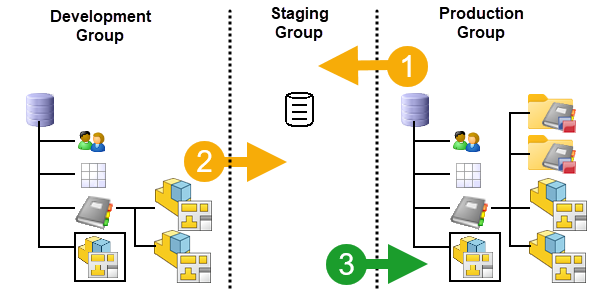
The process to update a production implementation with information from a development group can be summarized in the following three steps:
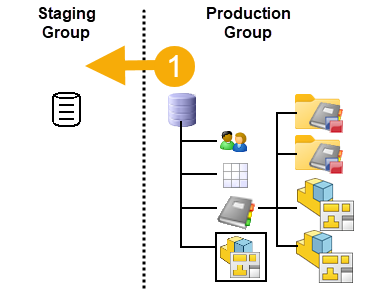
- Copy the Production Group to a Staging Group
- Merge the Development Group into the Staging Group
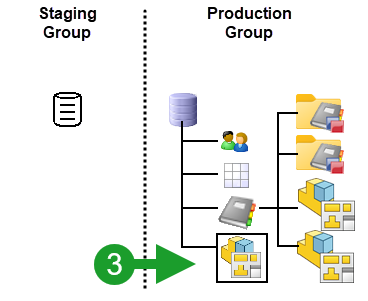
- Merge the Staging Group into the Production Group
An implementation requires the following data to function:
- A DriveWorks Group and all captured data
- Project data and all physical files required for the implementation
The image below shows the recommended process flow along with the data being transferred between each group, see DriveWorks Group Data below for a full description.
DriveWorks Group Data
The following table lists the information stored in a DriveWorks Group and identifies which group controls the data.
| Data | Group controlling the data | |
|---|---|---|
 | Security Settings Which includes:
| Typically this information will be controlled in the development group.
However if a project in production uses any Task to control security (see Security Tasks for all tasks that will affect security) the security information in the production group will need to be maintained. |
 | Group Tables | Typically this information will be controlled in the development group.
However if a project in production controls Group Table data (for example Export to Group Table, Delete Group Table Rows, etc.) the group table information in the production group will need to be maintained. |
 | Captured Information | Controlled in the development group. |
 | Projects | Controlled in the development group. |
 | Specification Information | Controlled in the production group. |
 | Released Files | Primarily controlled in the production group.
However if using Intelligent File Names for any model that has been generated in the development group this can be merged. |
| Released Master Files | Primarily controlled in the production group.
However if using Intelligent File Names for any model that has been generated in the development group this can be merged. |
Additionally the following data could exist:
- Group Level Styling
- Project Level Styling
- Master Document Templates
- Any documents and images used on user forms in a project
These files are controlled with the development data and will be copied when the development data is merged into the staging group.
Getting an implementation into production for the first time
For a first time deployment no production group will have been previously created.
Therefore the process is slightly different to the updating an existing production implementation process, where the first step is not required.
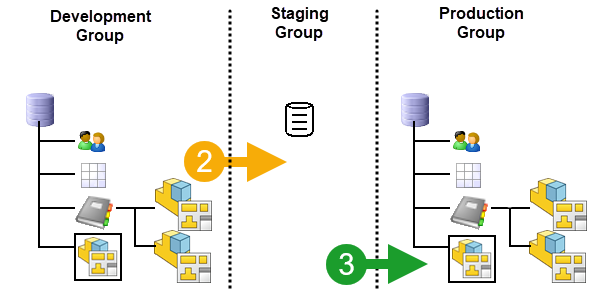
- This step is not required for a first time deployment
- Merge the Development Group into the Staging Group
- Merge the Staging Group into the Production Group
1. Copy the Production Group to a Staging Group
Copying the production group to a staging group creates an area where subsequent steps can be fully proven before the production group is ultimately updated.
Copying data to the staging group requires:
- A connection to the production group.
- An empty group for all group data from development and production to be merged into.
- A storage area for all physical files associated to the group and projects to be deployed.
This step requires briefly taking the production group offline.
Plan a suitable time for this to take place to minimize disruption to the users of the implementation.
This should be a minimal period to ensure the initial copying of production data is not interrupted by any new specifications being made.
A further period of downtime wil be required later when the final data is ready to be deployed.
Ensure the following applications, that could be connected to the production group, are closed:
- DriveWorks Administrator
- DriveWorks User
- DriveWorks Autopilot
- DriveWorks Live including IIS
DriveWorks Pro Server
DriveWorks Pro Server should be running to allow connection to the production group.
- Launch DriveWorks Data Management and open the production group (source group).
SOLIDWORKS PDM Professional plugin
DriveWorks Data Management does not have access to the SOLIDWORKS PDM Professional plugin.
Any DriveWorks files that are managed by SOLIDWORKS PDM Professional (project, models and specification) are required to be checked out manually before managing the data in DriveWorks Data Management.
- Select DriveWorks Tasks from the task explorer and click Copy Group.
- In the Copy Group wizard, click Browse at the end of the Target Group field.
- In the Create/Open Group dialog, select one of the following:
- Create a new group
Select this option if a staging group has not been created before.
- Open an existing group
Select this option if a staging group exists. We recommend all data be cleared from the group and folders before proceeding.
- Create a new group
- Proceed through the wizard to create or open the staging group.
Ensure the correct credentials to login to the group are entered and the Data Backed Up checkbox has been selected.
- Click Next
- Step through the wizard to copy all data from the production (source) group into the staging (target) group.
More information on the steps involved can be found in How To Use Copy Group.
- Re-enable the production environment.
2. Merge the Development Group into the Staging Group
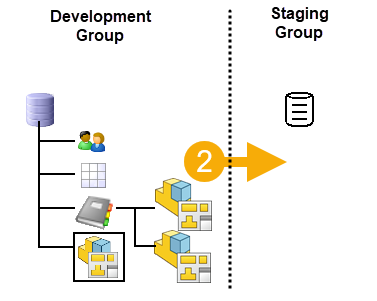
- Launch DriveWorks Data Management and open the development group (source group).
- Select DriveWorks Tasks from the task explorer and click Copy Group.
SOLIDWORKS PDM Professional plugin
DriveWorks Data Management does not have access to the SOLIDWORKS PDM Professional plugin.
Any DriveWorks files that are managed by SOLIDWORKS PDM Professional (project, models and specification) are required to be checked out manually before managing the data in DriveWorks Data Management.
- In the Copy Group wizard, click Browse at the end of the Target Group field.
- In the Create/Open Group dialog select one of the following:
- Create a new group (for first time deployment where a staging group does not exist only).
Proceed through the wizard to create the staging group. We recommend creating a shared group to replicate how the production group will be used.
- Open an existing group (when the staging group was created in the previous section).
Proceed through the wizard to connect to the staging group.
Ensure the correct credentials to login to the group are entered and the Data Backed Up checkbox has been selected.
- Create a new group (for first time deployment where a staging group does not exist only).
- Click Next
- Step through the wizard to copy the required data from the development (source) group into the staging (target) group.
Getting an implementation into production for the first time
All data can be copied from the development (source) group.
There will be an opportunity to remove unwanted data before copying the staging group into production.
Updating an existing production implementation
It is important particular attention is given to the following steps:
- Select Projects
Select the projects required to be deployed to the staging group. This should include new or existing projects that have been updated.
New projects (not in the staging group) will be added.
Existing projects (already in the staging group) will be overwritten.
Projects can be removed prior to moving the data to the production group.
Rule History
Rule history is not required. Excluding this will minimize the size of the group database.
Rule history will be maintained in the development (source) group.
- Select Group Tables
When updating an existing production group (not a first time deployment):
- Select any new group tables required to be deployed to the staging group.
- Group tables that have previously been deployed to a production group will be considered before merging to the production group. See Group Table Considerations for information.
- Captured Components
Select the captured components required to be deployed to the staging group.
New captured components (not in the staging group) will be added.
Existing captured components (already in the staging group) will be overwritten.
Captured components can be removed prior to moving the data to the production group.
- Additional Options
- Source Root Folder
Ensure the root folder is a common root location where all files can be located.
This should include:
- Group Content Folder (if used for Group Level Styling for instance).
- Any location where Master Document Templates used to create documents are stored.
- Any location where documents and images displayed on user forms are stored.
- Target Root Folder
Ensure the target root folder is the area allocated for the staging data.
- Copy New Security Users and Teams
- Select this to copy all new security users and teams.
- Existing security users and teams (that have been updated) will be considered before merging to the production group. See Security Users and Teams Considerations for information.
- Copy All Connectors
Select this only if any Connectors used by DriveWorks Autopilot have been added or updated and are required to be in the staging group.
- Copy All Specifications
This will be ignored if selected as specifications (copied from the production group) already exist in the staging group.
Subsequent specifications created in the production group (since the initial copying of the production data), will be maintained at the point production is taken offline while the data is updated.
Any specifications made in the development group will be maintained in the development group.
- Copy All Released Files and Information
Select this only when models generated in the development group are required in the production group.
Copy All Reports
Optionally select if Copy All Reports is required. Excluding this will minimize the size of the group database.
Reports will be maintained in the development (source) group.
Reports can be removed when Copy Group is used to copy the staging data to the production group.
- Source Root Folder
- File Selection
Review this section to ensure all required files are copied to the staging area.
More information on the steps involved can be found in How To Use Copy Group.
- Select Projects
Review the staging data
Reviewing the staging data ensures that all staged data (with the exception of any specification information, which will not be copied) is the data required for the production group.
Updating an existing production implementation
At this point, the production group should still be online.
Further specifications could have been created and outputs generated.
This new information will be retained during the final step when the staging data is merged into the production group.
Open the staging group in Data Management and:
- Select Captured Information from the task explorer.
- Ensure the location of all captured information is the folder selected for the staging data.
- Ensure all models and drawings displayed are required for the production group.
- If any model or drawing is not required in the production group:
- Expand the folder list to display the folder where the model or drawing is located.
- Select the model or drawing to be removed from the captured list.
- Click the Delete References button from the command bar.
- Select Projects from the task explorer.
- Ensure the location of all projects is the folder selected for the staging data.
- Ensure all projects displayed are required for the production group.
- If any project is not required in the production group:
- Expand the folder list to display the folder where the project is located.
- Select the project to be removed from the project list.
- Click the Delete Project button from the command bar.
- Select Specification Information from the task explorer.
- Ensure the location of all specifications is the folder selected for the staging data.
Specifications created prior to the update will retain the original project information.
Only data obtained from an updated group table or database will be used and only when the specification enters a state that triggers rule re-calculation.
- Select Released Files from the task explorer.
- If any models released while in development use intelligent file naming, these may require copying to the production group (to minimize model generation time in the production group).
- For released files that use the special variable DWSpecificationId (including DWSpecification) in the name we recommend maintaining the reference in the production group.
- Remove unwanted released files:
- Select the released files that are not required.
- Click the Delete button from the command bar.
- Ensure the options to Remove References from DriveWorks, Delete File from Windows Explorer and Delete Component Reports are selected in the Delete Specification Information dialog.
- Click OK.
- Select Released Master Files from the task explorer.
- Released Master Files display the reference of the master file used to generate any components.
- Released Master Files will be removed if references to Released Files have been deleted.
- Ensure the location of any remaining Released Master Files is the folder selected for the staging data.
Test the staging data
A thorough test will be performed when the data is merged into production, prior to going back online.
This test should ensure all new and updated project data has been copied correctly and outputs generate as expected.
Open the staging group in DriveWorks Administrator and:
- Run a specification for each project using Specification - Test Mode
- Check each tab to ensure Forms display, rules evaluate as expected and Documents (if applicable) generate.
- Check Model Rules (if applicable) are accurate and use one of the available Generation methods to run through generation scenarios.
3. Merge the Staging Group into the Production Group
Updating an existing production implementation
The production group should now be taken offline.
Plan a suitable time for this to take place to minimize disruption to the users of the implementation.
Ensure the following applications, that could be connected to the production group, are closed:
- DriveWorks Administrator
- DriveWorks User
- DriveWorks Autopilot
- DriveWorks Live including IIS
DriveWorks Pro Server
DriveWorks Pro Server should be running to allow connection to the production group.
Group Table Considerations
This section only applies when updating an existing production implementation
If a project in production controls group table data (for example Export to Group Table, Delete Group Table Rows, etc.) the information in the production group will need to be maintained.
This could have potentially changed since the production data was copied to the staging group.
Now the production group has been taken offline:
- Open the production group in one instance of DriveWorks Administrator.
- Select Group Tables from the task explorer, and select the group table that has the updated information.
- Select the View/Edit button from the command bar.
- Select all the data in the table, right click and select Copy.
- Open the staging group in another instance of DriveWorks Administrator.
- Select Group Tables from the task explorer, and select the group table that requires updating.
- Select the View/Edit button from the command bar.
- Select all the data in the table, right click and select Paste.
Repeat the above for all other group tables that could be updated by functionality in the production group.
Security Users and Teams Considerations
This section only applies when updating an existing production implementation
New security users and teams added to the development group will be merged into the production group.
Only updates to existing users and teams, made in the development group need to be considered.
These updates will need to be re-applied in the production group.
- Open the production group in one instance of DriveWorks Administrator.
- Select Security Settings from the task explorer, and select each user and team that requires updating in turn.
- Select the Edit button from the command bar.
- Apply the required update.
Settings applied in development group can be compared by opening the development group in another instance of DriveWorks Administrator.
Merge the Staging Group into the Production Group
- Launch DriveWorks Data Management and open the staging group (source group).
- Select DriveWorks Tasks from the task explorer and click Copy Group.
- In the Copy Group wizard, click Browse at the end of the Target Group field.
- In the Create/Open Group dialog select Open an existing group.
- Open the production (target) group.
Ensure the correct credentials to login to the group are entered and the Data Backed Up checkbox has been selected.
- Click Next
- The staging (source) group should now mirror how the production (target) group is required to be.
Step through the Copy Group wizard to copy all data to the production group.
Specification ID
This section only applies when getting an implementation into production for the first time
For first time deployments to production consider if the Specification ID pool should be reset in the production group.
See Reset Specification Id Pool for more information.
Group Settings
Before going online with the production group ensure all required settings are applied.
- Open the production group in DriveWorks Administrator.
- Click the Settings button from the header bar.
- Select the General Settings category, and apply the required settings.
The development group can be opened in another instance of DriveWorks Administrator to compare settings.
SOLIDWORKS PDM Professional
When integrating with SOLIDWORKS PDM Professional the plugin settings that are stored locally will need to be applied in the production group.
See SOLIDWORKS PDM Professional Plugin Settings for more information.
- Welcome
- What's New
- DriveWorks 24
- Older Versions
- DriveWorks 23
- DriveWorks 22
- DriveWorks 21
- DriveWorks 20
- DriveWorks 19
- DriveWorks 18
- DriveWorks 17
- DriveWorks 16
- DriveWorks 15
- DriveWorks 14
- DriveWorks 12
- What's New DriveWorks 12
- Form Design
- Rule Builder
- Tables
- Documents
- Model Rules
- Specification Test Mode
- Specification Explorer
- 3D Preview
- DriveWorks Live
- DriveWorks Add-in for SOLIDWORKS
- DriveWorks 11
- What's New DriveWorks 11
- DriveWorks Administrator
- DriveWorks Add-in for SolidWorks
- DriveWorks Package
- Settings
- Clear Recent List
- Task Status
- Renaming Controls and Variables
- Rule Builder
- Group Tables
- Form Design
- Documents
- Model Rules
- Specification Macros
- Toolbox
- DriveWorks Autopilot
- DriveWorks Live
- DriveWorks 3D Workshop
- DriveWorks Pro Server
- Installation
- Licensing
- DriveWorks 10
- DriveWorks 9
- DriveWorks 8
- Installation
- DriveWorks Administrator
- DriveWorks Data Management Tool
- DriveWorks Live
- Administrator
- DriveWorks Administrator
- Before You Begin
- Using DriveWorks Administrator
- Using DriveWorks Administrator
- SolidWorks
- SOLIDWORKS
- Captured Models
- Part Mode
- Assembly Mode
- Drawing Mode
- Model Generation
- New Specification
- Project Designer
- Project Designer
- Stage 1: Group Setup
- Stage 2: User Interface
- Form Navigation
- CPQ-CustomItem Template
- Form Design
- Form Design
- 3D Preview Box
- Check Box
- Check Box Group
- Child Specification List
- Clipboard Button
- Combo Box
- Data Grid
- Data Table
- Date Picker
- Dialog Button
- Frame Control
- Hyperlink
- Item List
- Label
- List Box
- Macro Button
- Measurement Text Box
- Numeric Text Box
- Option Button
- Option Group
- Picture Box
- Slider
- Specification Host
- Spin Button
- Text Box
- TinyMCE Control
- Toggle Switch
- Upload Control
- Web Frame
- Form Messages
- Stage 3: Data and Rules
- Stage 4: Output Rules
- Documents - Files
- Documents - Data
- Documents - 3D
- DriveWorks 3D File
- Rotation And Orientation
- Environment
- Assets
- Nodes
- Guides and Best Practices
- Model Rules
- Generation Tasks
- Generation Tasks
- Generation Task Toolbox
- General
- Assembly
- Assembly & Drawing
- Drawing
- Activate Sheet
- Auto Arrange Dimensions
- Auto Balloon View
- Create General Table
- Create Sheet Images
- Delete Dangling Dimensions
- Drive General Table
- Insert Note
- Re-jog Ordinate Dimensions
- Replace View Component Reference
- Rescale And Position View
- Set Annotation Position by Percentage
- Set Annotation Position by Distance
- Set Annotation Positions by Percentage
- Set Annotation Positions by Distance
- Set Display Style of Views
- Setting: Hide Dangling Dimensions
- Set View Relative Position
- File System
- Part
- Part & Assembly
- PDMPro
- PDMPro: Change the State of a File
- PDMPro: Check Out File
- PDMPro: Check Out Folder Content
- PDMPro: Check In File
- PDMPro: Check In Folder Content
- PDMPro: Clear Local Cache From Folder
- PDMPro: Clear Local Cache For File
- PDMPro: Create Folder
- PDMPro: Delete File
- PDMPro: Get Latest File
- PDMPro: Get Latest Files
- PDMPro: Get Latest Files in Folder
- PDMPro: Get Specific File Version
- PDMPro: Update File Data Card
- PDMPro: Update Folder Data Card
- Specification
- Generation Tasks - Condition Editor
- Generation Task Condition Toolbox
- Specification Conditions
- Generation Conditions
- Stage 5: Specification Control
- Specification Settings
- Specification Properties
- Specification Macros
- Specification Flow
- Toolbox
- Toolbox
- Tasks
- 3D
- Calculate Bounding Box Data
- Calculate Estimated Volume Data
- Create Preview Image
- Delete Document Appearance
- Delete Document Decal
- Delete Document Node
- Duplicate Document Appearance
- Duplicate Document Decal
- Duplicate Document Node
- Export 3D as gITF
- Export 3D as OBJ
- Export 3D as STL
- Export Smoothed 3D
- Import 3D Document
- Get Document Node Transform
- Get LookAt Rotation
- Import glTF as 3D
- Import OBJ as 3D
- Import STL as 3D
- Run 3D Preview
- Save 3D Document
- Set Document Entity Suppression State
- Set Document Node Static Transform
- Suffix 3D Asset Names
- XR Session Exit
- Autopilot
- Browser Navigation
- Data
- Clear Deferred Flag For Drawings
- Clear Deferred Flag For Specification Drawings
- Create Project Metadata
- Delete Calculation Table Rows
- Delete Group Table Rows
- Delete Simple Table Rows
- Drive Constant Value
- Drive Control Value
- Enable OnDemand
- Evaluate Rule Value
- Get Constant Value
- Get Control Value
- Refresh Tables
- Regenerate and Delete Component
- Regenerate and Delete Specification Components
- Regenerate and Overwrite Component
- Regenerate and Overwrite Specification Components
- Release Documents
- Release Emails
- Release Models
- Send HTTP Request
- Set Project Meta Data Value
- Set Triggered Action States To Trigger On
- Update Group Table Using Array
- File System
- General
- PDF
- PDF: Add Page Stamps
- PDF: Add Watermark Image
- PDF: Add Watermark Image With Autofill
- PDF: Add Watermark Text
- PDF: Add Watermark Text With Autofill
- PDF: Image(s) to PDF
- PDF: Markdown File to PDF
- PDF: Merge
- PDF: PDF to Image(s)
- PDF: Remove Document Info
- PDF: Remove Metadata
- PDF: Remove Page Stamps
- PDF: Remove PDF Pages
- PDF: Replace Keyword
- PDF: Rotate Page(s)
- PDF: Set Document Info
- PDF: Set Metadata
- PDF: Split
- PDMPro
- PDMPro: Change the State of a File
- PDMPro: Check in File
- PDMPro: Check In Folder Content
- PDMPro: Check Out File
- PDMPro: Check Out Folder Content
- PDMPro: Clear Local Cache From Folder
- PDMPro: Clear Local Cache For File
- PDMPro: Create Folder
- PDMPro: Delete a file from vault
- PDMPro: Delete Folder
- PDMPro: Get History for a File
- PDMPro: Get Latest File
- PDMPro: Get Latest Files
- PDMPro: Get Latest Files In Folder
- PDMPro: Get Latest Specification Documents
- PDMPro: Get the Configurations for a file
- PDMPro: Get the File Data Card Values
- PDMPro: Get the File Information for a file
- PDMPro: Get the Folder Data Card Values
- PDMPro: Get Multiple Serial Numbers
- PDMPro: Get Next Serial Number
- PDMPro: Get Specific File Version
- PDMPro: Update File Data Card
- PDMPro Update Folder Data Card
- Security
- Add New Team
- Add New User
- Add User To Team
- Delete Team
- Delete User
- Enable/ Disable User
- Remove User From Team
- Set All Teams Can Run DriveApp
- Switch Team Leader Status
- Update Team Display Name
- Update Team Members Can Capture
- Update Team Members Can Edit All Specifications
- Update Team Members Can Edit DriveApps
- Update Team Members Can Edit Group Security
- Update the Team/Project Permissions
- Update User Display Name
- Update User Email Address
- Update User Password
- Services
- Specification Hosting
- Specification Upgrade
- Specifications
- Archive Specification
- Cancel Specification
- Change Child Specification State
- Complete Child Specification
- Copy Closed Child Specification
- Copy Closed Specification
- Copy Specification
- Create Closed Child Specification
- Delete Specification
- Export Specification Data
- Increment Revision Number
- Invoke Child Specification Operation
- Invoke Child Specification Transition
- Invoke Operation on Existing Specification
- Invoke Specification Operation
- Invoke Specification Transition
- Invoke Transition on Existing Specification
- Set Specification Owner
- Start Child Specification
- Store Specification
- Conditions
- Stage 6: Specification
- Specification Explorer
- Personal Web Edition
- Stage 7: DriveApps
- DriveApps
- Dashboard DriveApp
- CPQ DriveApp
- Scheduler DriveApp
- Settings
- Rules Builder
- Rules Builder
- Extract Variable
- Edit Variable
- Rule Builder Settings
- Writing Rules
- Writing rules
- Document Rules
- Model Rules
- Parts and Assemblies
- Model Rules Overview
- Model Rules
- Advanced Feature Parameter Rules
- Model Rules Advanced Feature Parameter Rules - Overview
- Boss/Base Features
- Boss/Base Thin
- Break Corner
- Chamfer
- Circular Component Pattern
- Circular Pattern
- Coordinate System
- Cosmetic Thread Features
- Curve
- Curve Driven Pattern
- Curve Through XYZ Points
- Cut Features
- Distance Mate Features
- Draft
- Edge Flange
- Features
- Fillet
- Hole Wizard Features
- Linear Component Pattern
- Linear Pattern
- Lofted Bend
- Mates
- Mold Features
- Offset Surface
- Pattern Driven Component Pattern (Derived)
- Patterns with Advanced Feature Parameters
- Revolved Boss/Base
- Revolved Boss/Base Thin
- Rib
- Ruled Surface
- Sheet Metal Features
- Simple Hole
- Sketch Driven Pattern
- Slot Mate
- Surface Features
- Sweep Thread
- Table Driven Pattern
- Var Fillet
- Weldment Features
- Wrap
- Drawings
- Functions
- Functions
- 3D
- Conversion
- Cryptography
- Database
- Date and Time
- ConvertFromUtc
- ConvertToUtc
- Date
- DateAddDays
- DateAddHours
- DateAddMilliseconds
- DateAddMinutes
- DateAddMonths
- DateAddSeconds
- DateAddWeeks
- DateAddYears
- DateTime
- DateTimeLocal
- DateTimeSpan
- DateValue
- Day
- GetTimeZones
- Hour
- Minute
- Month
- NetWorkDays
- NetWorkDaysCustom
- Now
- NowUTC
- Second
- TimeValue
- Today
- UnixEpoch
- Weekday
- WeekNum
- WorkDay
- WorkDayCustom
- Year
- File System
- Group
- Helper
- Lambda
- List
- Logical
- Math
- PDF
- PDMPro Plugin
- Polygon
- Security
- Specification
- Table
- CountIF
- CSVFromTable
- Dcount
- DMax
- DMin
- DWHLookup
- DWVLookup
- GetData
- GetTableValue
- HLookup
- ListAll
- ListAllConditional
- ListAllConditionalDistinct
- ListAllDistinct
- SumTableColumn
- TableAppendColumns
- TableAppendRow
- TableAppendRows
- TableAverage
- TableBreak
- TableColumn
- TableColumnLookup
- TableCombine
- TableDistinct
- TableDistinctCount
- TableDistinctSum
- TableFilter
- TableFilterAll
- TableFilterByList
- TableFormat
- TableFormatInvariant
- TableFromCsv
- TableFromList
- TableGetColumnCount
- TableGetColumnIndexByName
- TableGetDataRows
- TableGetHeaderRow
- TableGetRowCount
- TableGetRows
- TableGetValue
- TableJoin
- TableMax
- TableMaxValue
- TableMin
- TableMinValue
- TableRemoveBlankColumns
- TableRemoveBlankRows
- TableRemoveColumn
- TableRemoveRow
- TableReplaceHeaderRow
- TableReplaceHeaders
- TableReplaceRow
- TableReverse
- TableRow
- TableSearch
- TableSelectColumns
- TableSequence
- TableSkipRows
- TableSort
- TableSortByDate
- TableSortByList
- TableSubstitute
- TableSum
- TableTakeRows
- TableTranspose
- TableWithSequence
- VLookup
- Text
- Validation
- Variables
- Vector
- Group Wizards
- Project Wizards
- 3D Viewer
- User
- DriveWorks User
- Before You Begin
- Using DriveWorks User
- With SOLIDWORKS
- Task Explorer
- Stage 1: Specification
- Stage 2: DriveApps
- Settings
- Group Wizard
- Autopilot
- DriveWorks Autopilot
- Before You Begin
- Using DriveWorks Autopilot
- Task Explorer
- Autopilot
- Model Explorer
- Connectors
- Stage 1: Specification
- Stage 2: DriveApps
- Settings
- Group Wizard
- Import Specifications
- Live
- DriveWorks Live
- Before You Begin
- Using DriveWorks Live
- Stage 1: Specification
- Stage 2: DriveApps
- Stage 3: IIS
- Settings
- Group Wizard
- Customizing DriveWorks Live
- Customizing DriveWorks Live
- Integration Theme
- Web Theme
- Application Theme
- Pro Server
- Pro Server
- Before You Begin
- Pro Server Management Console
- Pro Server Web Application
- CPQ Sales Portal
- Overview
- System Administrator
- CPQ Administrator
- Tools
- DriveWorks Package
- Data Management
- Data Management
- Prerequisites
- Settings
- Settings
- Plugin Settings
- Data Management Task Explorer
- Group Upscale
- License Management
- Knowledge Base
- Knowledge Base
- Guides and Best Practices
- DriveWorks Guides
- How To: Automatically Launch a Dashboard Tile (KB23012601)
- How To: Configure Microsoft Entra ID For Exchange Online Email Authentication (KB26011301)
- How To: Deploy DriveWorks Pro (KB13010804)
- How To: DriveWorks Best Practices (KB12121019)
- How To: Implementation Guide (KB12121022)
- How To: Microsoft Azure (KB19020401)
- How To: Move From a 32bit machine to a 64bit machine (KB13103013)
- How To: Use HTTPS, SSL and Multiple Domains
- How To: Take An Implementation From Development To Production
- SOLIDWORKS Best Practices
- How To: Improve Model Generation Performance (KB22051001)
- SOLIDWORKS Best Practices (KB13103019)
- Equations (KB13103020)
- Configuration Specific Properties (KB13103021)
- Design Tables, Configurations and Derived Configurations (KB13103022)
- In Context or Top Down Modelling (KB13103024)
- Mirror Components (KB13103025)
- Patterns (KB13103026)
- Piping (KB17101301)
- Read Only Models (KB13103027)
- Virtual Parts (KB13103028)
- DriveWorks Live and IIS
- How To: Create and Edit Specifications Using URL Parameters (KB25042201)
- How To: Embed DriveWorks In WordPress (KB23012301)
- How To: Install Internet Information Services (IIS) (KB20111201)
- IIS Management
- How To: Configure IIS For The Web Theme (KB13103033)
- How To: Configure IIS For The Integration Theme (KB20111101)
- How To: Load Balance IIS (KB20111601)
- How To: Troubleshoot IIS (KB16081601)
- How To Articles
- DriveWorks Data, Groups and External Databases
- How To: Backup a SQL Server Database (KB13022701)
- How To: Restore a SQL Server Database (KB13010806)
- How To: Move a Shared Group (KB13010805)
- How To: Backup an Individual or Shared Group and Data (KB13022601)
- How To: Move an Individual Group (KB12121028)
- How To: Delete a Group (KB13103007)
- How To: Reduce the Size of a Group (KB19012301)
- How To: Rename A Group (KB17092601)
- How To: Move DriveWorks Data (KB12121029)
- How To: Rename A Project (KB12121032)
- How To: Configure SQL Server for Remote Access (KB14022401)
- How To: Configure Windows Firewall for Pro Server (KB25031101)
- How To: Configure Windows Firewall for SQL Server (KB13103002)
- How To: Write Database Queries Using SQL (KB12121044)
- How To: Optimize A SQL Database (KB17071701)
- How To: Set up a DSN-Access (KB13103016)
- How To: Set up a DSN-SQL Server (KB13103018)
- How To: Setup a DSN-Other Database (KB13103017)
- How To: Configure SQL Server 2008 for Remote Access (KB13010801)
- How To: Configure SQL Server 2005 for Remote Access (KB13010802)
- How To: Configure Windows Firewall for SQL Server - Windows XP and Vista (KB13103003)
- How To: Copy a DriveWorks 6 Group in SQL Server (KB13010803)
- How To: Copy a DriveWorks 6 Implementation (KB12121003)
- DriveWorks Live
- How To: Automatically Start DriveWorks Live (KB13103034)
- How to: Calculate the RAM required for a Server to host DriveWorks Live
- How To: Change the Favicon in DriveWorks Live (KB18081401)
- How To: Change the Loading Gif in DriveWorks Live (KB18081402)
- How To: Customize a DriveWorks Live Form using CSS
- How To: Customize the DriveWorks Live Web Theme (KB13120601)
- How To: Embed Non-Standard Fonts (KB16051701)
- How To: Ensure A DriveWorks Live Form is responsive when rendered in a CSS grid
- How To: Extend the Timeout In DriveWorks Live (KB12121020)
- How To: Implement an Auto-Login in DriveWorks Live (KB13103012)
- How To: Make Your Website React To Specification Events With The Integration Theme (KB19042301)
- How To: Modify the Update Interval In DriveWorks Live (KB12121027)
- How To: Pass Data from a Website to a Specification within an IFrame (KB18111901)
- How To: Upgrade The Integration Theme (KB24011601)
- How To: Upgrade the Web Theme (KB14022801)
- DriveWorks 3D
- DriveWorks Autopilot
- Data and Rules
- Documents
- Installation and Licensing
- How To: Determine the Version of DriveWorks Pro (KB12121009)
- Installation
- How To: Install DriveWorks From A Command Prompt (KB16071802)
- Info: Identify License Activation Codes (KB13022602)
- How To: License DriveWorks Live Using Environment Variables (KB19051401)
- How To: Manually Install A PowerPack (KB18102201)
- Security and Specification
- Templates
- User Form
- How To: Apply Line Item Numbers To Child Specifications (KB13120301)
- How To: Change A Static Property To A Dynamic Property (KB13111201)
- How To: Format Text (KB13021901)
- How To: Create A Clickable Image (KB12121007)
- How To: Create In Form Navigation (KB13120302)
- How To: Reference Control Properties (KB16010601)
- How To: Use The Macro Argument Property (KB12121043)
- How To: Specify Multiple Projects Into One Main Project using the Child Specification List control (KB12121034)
- How To: Use the Specification Host control (KB16122101)
- SOLIDWORKS and PDM
- How To: Create Multiple Component Sets From A Single Specification
- How To: Create Models To Be Used As Replacement Files (KB14050801)
- How To: Drive the Color of a Part (KB12121016)
- How To: Drive the Material of a Part (KB12121017)
- How To: Drive the Texture of a Part (KB13103010)
- How To: Drive Sheet Metal Parts (KB12121018)
- How To: Generate A Drawing That References Multiple Files (KB17092701)
- How To: Name And Write Rules For Mating To A Face, Plane, Axis or Coordinate System (KB17072701)
- How To: Replace a Component With a Standard or Driven Replacement Model (KB13103014)
- How To: Replace An Instance With A Driven Replacement Model (KB12121033)
- How To: Create A Macro To Run On A SOLIDWORKS File (KB13103006)
- How To: Maintain Rules For An Existing Model When It Becomes A Child Of A Parent Assembly (KB12121026)
- How To: Rename A Master Model (KB18011801)
- Info: Dangling Dimensions (KB13022001)
- Info: Instant3D (KB13022102)
- Info: Mirrored Components (KB12121005)
- Info: Model Generation Behavior (KB12121006)
- Info: SOLIDWORKS Document Manager (KB12121011)
- Info: SOLIDWORKS System Options (KB12121012)
- How To: Set Up SOLIDWORKS PDM
- Diagnostics, Reporting and Troubleshooting
- Diagnostics And Reporting
- Diagnostics
- How To: Diagnose Project and Generation Issues (KB12121010)
- How To: Diagnose Project Issues Using The Rules Builder (KB12121013)
- How To: Diagnose Project Issues Using Specification Test Mode (KB13103009)
- How To: Diagnose Project Issues Using SOLIDWORKS (KB12121014)
- How To: Diagnose Project Issues Using The Form Designer (KB12121012)
- Reporting
- Troubleshooting
- Error Message Search
- How To: Create A Cut Down Project (KB17092602)
- How To: Troubleshoot 3D Preview (KB16113001)
- How To: Troubleshoot Documents (KB13022702)
- How To: Troubleshoot DriveWorks Autopilot
- How To: Troubleshoot DriveWorks Group Issues (KB12121037)
- How To: Troubleshoot DriveWorks Live (KB14021401)
- How To: Troubleshoot DriveWorks Pro Server Connection (KB13103030)
- How To: Troubleshoot Emails (KB12121038)
- How To: Troubleshoot Form Designer (KB12121035)
- How To: Troubleshoot Network Licenses (KB20112701)
- How To: Troubleshoot IIS (KB16081601)
- How To: Troubleshoot Installation (KB13103029)
- How To: Troubleshoot The Integration Theme (KB21060901)
- How To: Troubleshoot Fixed Licenses (KB13010807)
- How To: Troubleshoot Missing Plugin References KB17101001
- How To: Troubleshoot SOLIDWORKS Errors
- How To: Troubleshoot SOLIDWORKS PDM
- How To: Troubleshoot SQL Connection (KB13103032)
- How To: Troubleshoot Triggered Actions
- How To: Troubleshoot WebView2 Runtime Installation (KB25102401)
- Information Articles
- DriveWorks 3D
- External Data
- External Resources
- File and Template Locations
- Info: DriveWorks File Extensions (KB13022602)
- Info: File and Template Locations (KB13103001)
- Exclusions and Allowing Access for Anti-Virus and Firewall
- Template Files
- Lists and Preferences
- DriveWorks Autopilot Files
- DriveWorks Live Theme Files
- Reporting
- Help File
- Temporary Files
- Installation Files
- File Naming and Location
- Form Control Properties
- Concept: Use of the Override Rule (KB12121001)
- Allow Copy
- Allow Printing
- Background Color
- Behavior
- Border Color
- Border Radius
- Border Style
- Border Width
- Button Background Color
- Button Border Color
- Button Icon Color
- Button Icon Style
- Button Layout
- Button Outline Color
- Button Padding
- Button Spacing
- Button Text Reset Duration
- Camera Auto-Center
- Camera Enable Orthographic
- Camera Enable Pan
- Camera Pan Max Radius
- Camera Rotation Limits
- Camera Zoom Limits
- Canvas Background Color
- Canvas Text Color
- Caption
- Caption Color
- Horizontal Alignment
- Button and Caption Width
- Character Limit
- Check Alignment, Option Alignment
- Check Background Color
- Check Border Color
- Checked
- Check Mark Color
- Projects
- Clear Selection Allowed
- Click Selected Row To Deselect
- Name, State and Type Column Visible
- Column Widths
- Date Format
- Date
- Decimal Places
- Default File Name
- Camera Default Orientation
- Default Row Identity
- Default Row Index
- Default Value
- Dialog Name
- Display Performance Window
- Display Units
- Display Value
- Duplicate File Behavior
- Editor Mode
- Enable Animations
- Enabled
- Enable Hover
- Enable Image Mode
- Enable Upload
- Enable VR
- Enter Immersive XR Button File Name
- Enter Inline XR Button File Name
- Error Result
- File Filter, Upload File Extension Filter
- File Name
- File Size Limit, Byte Limit, Upload File Size Limit
- Final Frame Render
- Font
- Form Name
- Generation Method
- Grid Line Color
- Group Border Color
- Group Name
- Group Padding
- Group Spacing
- Header Background Color
- Header Text Color
- Header Text Horizontal Alignment
- Header Text Vertical Alignment
- Height
- Hidden Fields
- Hidden Item Values
- Hidden Result Columns
- Hide Characters
- Hide On Date Selection
- Text Underline, Text Underline (Hover)
- HTML
- Hyperlink
- Identity Fields
- Increment
- Input Background Color
- Input Border Color
- Input Icon Color
- Input Icon Margin
- Input Icon Size
- Input Outline Color
- Input Spacing
- Input Values
- Inset Track
- Item List Editor
- Items
- Items (Data Table)
- Item Text Color
- Language Pack Path
- Left
- Lighting
- Link Behavior
- List Background Color
- List Border Color
- List Item Background Color
- List Item Border Color
- List Item Color
- List Item Outline Color
- List Item Text Color
- Loading Progress Bar Color
- Loading Progress Display
- Loading Progress Image File Name
- Macro Argument
- Macro Name
- Maximum
- (Metadata)
- Minimum
- Multiline
- Name
- Native Units
- Nullable
- Number Of Rows
- On Autopilot Preview Requested Macro
- On Background Clicked Macro
- On Cancelled Macro Name
- On Change
- On Upload Complete Macro
- On Model Clicked Macro
- On Preview Complete Macro
- On Transitioned Macro Name
- Opacity
- Opacity (Disabled)
- Orientation
- Outline Color
- Override Rule
- Padding, Input Padding, Unit Padding
- Picture
- Picture Border Radius
- Picture Checked, Hover, Selected and Pressed
- Picture Height
- Picture Position
- Picture Size Mode, Size Mode
- Picture Style
- Picture Width
- Placeholder Text
- Preview Document Name
- Preview Engine
- Radio Background Color
- Radio Border Color
- Radio Dot Color
- Read Only
- Reverse Direction
- Row Background Color (Hover)
- Row Background Colors
- Row, Header Height
- Row Text Color
- Row Text Horizontal Alignments
- Row Text Vertical Alignment
- Horizontal and Vertical Scroll Visibility
- Selected Item and Selected Option
- Selected Item Removed Behavior
- Selected Row Index
- Show Border
- Show Check and Show Option
- Show Filler Column
- Show Grid Lines
- Show Limits
- Show Toggle Indicators
- Size Mode
- Check Size, Radio Size, Button Icon Size, Toggle Size
- Sort Allowed
- Input Spacing
- Tab Index
- Tag
- Tags
- Target Control Name
- Task List Enabled
- Text (Hyperlink and Button Controls)
- Text Color
- Text Horizontal Alignment, Option Text Horizontal Alignment, Toggle Alignment
- Text (Label Control)
- Text (Error)
- Text (Success)
- Text
- Text Vertical Alignment, Vertical Alignment
- Thumb Background Color
- Thumb Border Color
- Thumb Height
- Thumb Image
- Thumb Image Size Mode
- Thumb Margin
- Thumb Outline Color
- Thumb Padding
- Thumb Width
- Timeout
- Toggle Background Color
- Toggle Border Color
- Toggle Handle Color
- Toggle Indicator Color
- Tooltip Duration
- Tooltip Text
- Top
- Track Color
- Track Color (Fill)
- Track Fill Start Value
- Track Size
- Unit Background Color
- Unit Border Color
- Unit Icon Color
- Unit Icon Margin
- Unit Icon Size
- Unit Outline Color
- Unit Text Color
- Upload Directory Path
- Upload Disabled Message
- URL/HTML
- Use Relative Path Rules
- Use SOLIDWORKS Extension Suffix
- Value
- Visible
- Width
- Word Wrap
- Licensing
- Limits
- SOLIDWORKS
- Special Variables
- Specification Flow
- Support and Notices
- Info: Error Value and Error String (KB23071901)
- Info: Known Issues (KB13103005)
- Info: Legal Notices
- Info: Microsoft .NET September 2022 Update Crash (KB22101401)
- Info: Supported DriveWorks Versions (KB13103006)
- Info: Third Party Software Information And Downloads (KB12121013)
- Info: Web Theme And Application Theme For DriveWorks 21 (KB23080101)
- Info: Microsoft Windows Support (KB13010803)
- How To: Obtain The DriveWorks SDK (KB12121030)
- Info: Excel Projects and DriveWorks Projects (KB12121001)
- User Interface Customization and Shortcuts
- DriveWorks Labs
- DriveWorks Labs
- Downloadable PowerPacks
- CAMWorks PowerPack
- DriveWorks PowerPack for Microsoft Azure
- DriveWorks PowerPack for Microsoft Azure
- Functions
- Specification Tasks
- Image PowerPack
- Image PowerPack
- Functions
- Specification Tasks
- Add Transparent Padding To An Image
- Circular Crop Image
- Convert Color In Image To Be Transparent
- Convert Image To Greyscale
- Crop An Image By Removing Whitespace Or Transparency
- Draw A Polygon In A New Image
- Draw Lines In New Image
- Flip Image
- Generate Area Chart
- Generate Barcode
- Generate Column Chart
- Generate Line Chart
- Generate Pie Chart
- Rectangular Crop Image
- Remove Exif Orientation Data And Rotate If Necessary
- Resize Image
- Rotate Image
- Salesforce PowerPack
- Salesforce PowerPack
- Functions
- SFConnectionStatus
- SFCurrentlyLoggedIn
- SFGetAccountDetailByID
- SFGetAccountDetailByIDForSpecificFields
- SFGetAccountDetailByName
- SFGetAccountDetailByNameForSpecificFields
- SFGetAccounts
- SFGetAllAccountsWithDetail
- SFGetAllContactDetailForAccountByID
- SFGetAllContactDetailForAccountByname
- SFGetContactNamesForAccountByID
- SFGetContactNamesForAccountByName
- SFGetObjectData
- SFGetObjectFieldData
- SFGetObjectList
- SFGetPicklist
- Specification Tasks
- Create A New Account In Salesforce
- Create A New Attachment In SalesForce
- Create A New Contact In Salesforce
- Create a New Entry in Salesforce for a Named Entity
- Create A New Opportunity In Salesforce
- Create a New Opportunity Line Item in Salesforce
- Create A New Price Book Entry In SalesForce
- Create A New Product In SalesForce
- Create a New Quote in Salesforce
- Delete a Record in Salesforce
- Update An Entry In Salesforce For A Named Entity
- SOLIDWORKS CAM PowerPack
- Specification PowerPack
- Specification PowerPack
- Functions
- SppAddNumberColumn
- SppAppendValueToConstant
- SppArithmeticSequence
- SppASCII
- SppBase64EncodeUrlSafe
- SppCompareListsForDifferences
- SppCompareListsForMatches
- SppConvertJsonToTable
- SppConvertNumberCulture
- SppConvertNumberCultureInTable
- SppConvertTableToHTMLTable
- SppConvertTableToJson
- SppConvertTabletoXml
- SppConvertXmltoTable
- SppCountTextLines
- SppCreateAcronym
- SppCreateJwtUsingRS256
- SppDateTimeSpan
- SppDEC2HEX
- SppDecodeBase64String
- SppDecodeHexString
- SppFileInfo
- SppFilterTableByExclusionList
- SppFilterTableByInclusionList
- SppFindAndReplaceInTable
- SppFirstFormName
- SppFontWidthInMillimetres
- SppFontWidthInPixels
- SppFormatColumnInTable
- SppGetAllTeams
- SppGetAllUsers
- SppGetAutopilotLog
- SppGetAutopilotsInGroup
- SppGetCapturedComponents
- SppGetContentLength
- SPPGetChildSpecificationProjects
- SppGetDomainNameFromEmailAddress
- SppGetFileCount
- SppGetFiles
- SppGetFilesByDateCreated
- SppGetFolders
- SppGetGroupTableCache
- SppGetGroupTables
- SppGetGroupTablesFromGroup
- SppGetMachineInfo
- SppGetModelQueueCount
- SppGetModelsInQueue
- SppGetNavigationSteps
- SppGetNavigationStepsInOrder
- SppGetOperationsAndTransitions
- SppGetOperationsAndTransitionsForChildSpecification
- SppGetPasswordHash
- SppGetProjectPath
- SppGetProjectsForCurrentUser
- SppGetProjectsForSpecifiedUser
- SppGetProjectsFromGroup
- SppGetProjectStates
- SppGetProjectTransitionsAndOperations
- SppGetReleasedModelChildren
- SppGetReleasedModelDetails
- SppGetReleasedModels
- SppGetRunnableProjectsForSpecifiedTeam
- SppGetSpecificationDetail
- SppGetSpecificationDocuments
- SppGetSpecificationID
- SppGetSpecificationModelsByID
- SppGetSpecificationModelsByName
- SppGetSpecificationName
- SppGetSpecificationOperationsAndTransitions
- SppGetSpecificationsByDate
- SppGetTableFromList
- SppGetTableFromText
- SppGetTableRow
- SppGetTableRows
- SppGetTableRowsBetweenText
- SppGetTeamID
- SppGetTeamName
- SppGetTeamsDataForUser
- SppGetTeamsForUser
- SppGetTextFromTable
- SppGetUserCanAdministerGroupSecurity
- SppGetUserDataForTeams
- SppGetUserIsTeamLeader
- SppGetVariableCategories
- SppGetVariablesInCategory
- SppGoogleAuthenticationJwtSignature
- SppGroupContentFolder
- SppGroupName
- SppHashHMACSHA256UsingHexKey
- SppHTTPGetRequest
- SppIfNonNumber
- SppIsBetween
- SppIsGUID
- SppIsLeapYear
- SppIsModelQueueEmpty
- SppIsSpecificationInAPausedState
- SppJoinTables
- SppJsonEscape
- SppJsonLoad
- SppJsonToXml
- SppJsonUnEscape
- SppListGetDuplicates
- SppMergeTables
- SppNewGUID
- SppNextFormName
- SppNowUtc
- SppOpenTextFile
- SppProjectName
- SppQuotationSurround
- SppReadFileContents
- SppRemoveCharacterTypes
- SppRemoveInvalidFilenameCharacters
- SppRemoveInvalidPathCharacters
- SppRemoveItemFromList
- SppRemoveTextFromList
- SppReOrderTableColumns
- SppReplaceInTable
- SppReplaceItemInList
- SppReverseString
- SppReverseTable
- SppRSAVerifyData
- SppSearchTable
- SppSetColumnInTable
- SppSortString
- SppSortStringNumeric
- SppSortTable
- SppStringFilter
- SppStringShorten
- SppStringSum
- SppSumTableColumnByGroup
- SppTableColumnAddValue
- SppTableColumnMultiplyByValue
- SppTableFilterByColumnComparison
- SppTableGroupByColumns
- SppTableGroupByColumnsWithAverage
- SppTableGroupByColumnsWithCount
- SppTableGroupByColumnsWithMax
- SppTableGroupByColumnsWithMin
- SppTableGroupByColumnsWithSum
- SppTableJoinColumns
- SppTableRowIndexOfValue
- SppTableSearch
- SppUnixEpoch
- SppUpdateTableHeaders
- SppXmlFromString
- SppXmlGetElementAttributes
- SppXmlGetElementChildlist
- SppXmlGetElementValue
- SppXmlGetRootValue
- SppXmlLoad
- SppXmlRemoveAllAttributes
- SppXmlRemoveAttribute
- SppXmlRemoveElement
- SppXmlSetAttributeValue
- SppXmlSetElementValue
- SppXmlToJson
- SppXPathGetElementAttributes
- SppXPathGetElementChildlist
- SppXPathGetElementValue
- SppXPathRemoveAttribute
- SppXPathRemoveElement
- SppXPathSetAttributeValue
- SppXPathSetElementValue
- Specification Tasks
- Add Excel Sheets
- Add Security Team To An Operation On A Specification Flow State
- Add Security Team to a Transition on a Specification Flow State
- Add Security Team to Specification Flow State
- Browse for file
- Change The Display Units Of Predefined Measurement Text Boxes
- Change the Team/Project permissions
- Copy a Folder
- Copy Excel Sheets
- Copy Group
- Copy Group on a Specified Source Group
- Create A New Team
- Create Folder
- Delete All Rows in a Simple Table
- Delete Excel Sheets
- Delete Specification By ID
- Delete Specification Document
- Drive Constants And Controls From A Table Array
- Export A Table Array To A Text File
- Export A Table Array To Named Range In Excel
- Export All Control Names To Named Sheet In Excel
- Export Control Values And Constants To Text File
- Export Control Values To Named Sheet In Excel
- Export Table Array To Excel Cell Reference
- Export Variables From Category to Text File
- Export Variables Listed In A Table To A Text File
- Export/Calculate/Import To and From Named Ranges in Excel
- Export/Calculate/Import To and From Named Sheets in Excel
- Extract a ZIP file to a given location
- Find and Replace Values in a Text File
- Get Environment Variable Value
- Get Registry Entry Value
- Import Data From An XML File Into Constants And Controls
- Import Lines From a Text File into an Existing Simple Table
- Import Lines From a Text File into Constants and Controls
- Import Multi Column Named Sheet from Excel into Constants and Controls
- Import Named Range Values from Excel into Constants and Controls
- Import Named Sheet From Excel Into An Existing Simple Table
- Import Named Sheet From Excel Into Constants And Controls
- Mark Component References Created By A Specification For Regeneration
- Mark Component References Created From A Specific Master Model For Regeneration
- Mark Component References For Regeneration
- Merge Multiple Word Documents Into A Parent Document
- Move a Row in a Simple Table
- Move Child Spec List Item
- Navigate Backward
- Navigate Forwards
- Navigate To The First Form
- Pack and Go
- Pack and Go on a Specified Source Group
- Pause Task Execution
- Remove Component References By File Name
- Remove Component References By File Name And Delete Files
- Remove Component References Created By A Specification
- Remove Component References Created By A Specification and Delete Files
- Remove Component References Referenced By A Specification And Delete Files
- Replace Images in Excel Document
- Replace Images in Word Document
- Run Command Line With Arguments
- Run Specification Operation
- Run SSH Command
- Set A Static Check Value Condition On A Transition
- Set A Static Check Value Condition On An Operation
- Set Calculation Table Row Count
- Start An Application With Arguments
- Start an Autopilot Agent
- Stop an Autopilot Agent
- Transition Specification
- Trigger a 3DPreview for a specific control
- Update A Single Value In A Simple Table
- Update Column Data in a Simple Table
- Update Group Table Using Array
- Update The Master Path Of Released Components
- Update The Tag(s) Of A Specified Released Component
- Update The Target Path Of A Specified Released Component
- Update Team
- Web Ping
- Write A Line Of Text To The End Of A Text File
- Write Array To Simple Table
- Write Report Entry To A Specifications Report
- Write Variables To Simple Table
- Zip Files
- Zip Folder
- SOLIDWORKS PowerPack
- SOLIDWORKS PowerPack
- SOLIDWORKS PowerPack Assembly
- SOLIDWORKS PowerPack DimXpert
- SOLIDWORKS PowerPack Drawing
- SOLIDWORKS PowerPack General
- SOLIDWORKS PowerPack Part
- SOLIDWORKS PowerPack Part & Assembly
- SOLIDWORKS PowerPack Conditions
- SYSPRO PowerPack
- SYSPRO PowerPack
- Functions
- Specification Tasks
- Automatically Installed Plugins
- SOLIDWORKS PDM Professional Plugin Settings
- PDF Plugin
- DriveWorks PDF Integration
- Functions
- Specification Tasks
- PDF: Add Page Stamps
- PDF: Add Watermark Image
- PDF: Add Watermark Image With Autofill
- PDF: Add Watermark Text
- PDF: Add Watermark Text With Autofill
- PDF: Markdown File to PDF
- PDF: Remove Page Stamps
- PDF: Image(s) to PDF
- PDF: Merge
- PDF: PDF to Image(s)
- PDF: Remove Document Info
- PDF: Remove Metadata
- PDF: Remove Page Stamps
- PDF: Remove PDF Pages
- PDF: Replace Keyword
- PDF: Rotate Page(s)
- PDF: Set Document Info
- PDF: Set Metadata
- PDF: Split
- DriveWorks Pro SDK
- Older Versions
- DriveWorks 23
- DriveWorks 22
- Integration Theme
- Pro Server
- Pro Server
- Before You Begin
- Using DriveWorks Pro Server
- CPQ DriveApp
- DriveWorks CPQ (DriveApp)
- Glossary