DriveWorks Administrator Interface
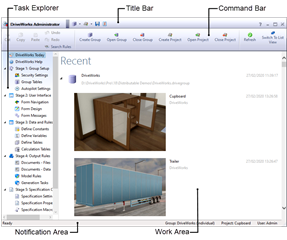
The DriveWorks Administrator interface consists of the following main areas:
- Title Bar - Access Groups, Projects and the DriveWorks Settings.
- Command Bar - The commands available depend on the Task selected from the Task Explorer.
- Task Explorer - Navigate to the required Task.
- Work Area - The Work Area adapts to the current selected task. This is where you define all the elements that make up a Project.
- Notification Area - This relays information about the environment (the installed DriveWorks version, the open Group and Project and the logged on user. Statistics about the selected Task are also displayed.
Groups and Projects
Groups and Projects are created and can be opened from the title bar, or from the command bar when on the DriveWorks Today and Help tasks.
A Group is required before a Project is created.
A Group and Project are required to be open to view all options in the Task Explorer.
Create a New GroupCreate a New ProjectLearn how to create a Group and Project.DriveWorks Today
When connected to the internet, DriveWorks Today will display dynamic community content containing useful links to information, news and events relating to DriveWorks.
The Today task also displays the Recent List that gives quick access to recently opened Groups and Projects.
Individual Groups display the location of the .drivegroup file and a single Group icon.
Shared Groups display the server name of the Group and a double Group icon.
Clicking any listed Group will open that Group.
Clicking any listed Project will open the Group and the selected Project.
All recently used Groups and Projects lists can be cleared from the DriveWorks Today screen.
- Select DriveWorks Today from the DriveWorks Task Explorer.
- Right Click on any item in the recent list.
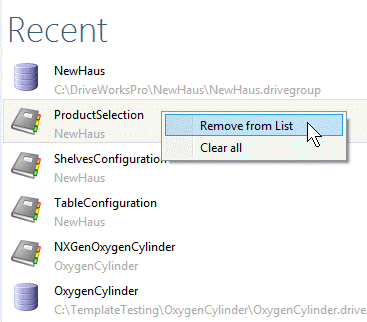
- Select Clear all.
Note all Recent Lists will be cleared. This includes:
- From the DriveWorks Today Window.
- From the Create/Open Group Wizard.
- From the Open/Create Project Wizard.
Group Setup
This Task provides the ability to add information at Group Level that will be accessible to all Projects created within the same Group.
Security Settings
The security settings task provides the ability to create Users, and Teams of users in order to control who can view, edit and specify projects, and work with captured information.
Group Tables
Group Tables allow the creation of tabular data relevant to all Projects within a Group.
Autopilot Settings
This task provides remote control of any DriveWorks Autopilot that is running and connected to a Shared Group that is open in DriveWorks Administrator.
DriveApp Administration
DriveApps add out of the box functionality to your current Group.
Add a Dashboard or Scheduler DriveApp to the Group.
Stage 2: User Interface
Use the DriveWorks Form Designer to create your own visually rich and highly interactive User Interface for entering product requirements in to your Configurator. Display options based on rules and provide step by step guidance through the configuration process.
Form Navigation
The Form Navigation designer enables quick creation of multiple input forms.
It is where the path (navigation) between multiple input forms is defined while a Specification is running.
Form Design
The Form Designer is where the controls are added that are displayed on each input form.
The Knowledge Base, How To section has a User Form category with tips and tricks to aid User Form design.
Form Messages
This tasks allows validation feedback to the user when invalid data has been entered.
Data and Rules
The power of DriveWorks as an automation tool is its ability to use rules. Constants, variables and tabular data can all be used in DriveWorks to build rules, perform calculations and generate the results you need.
Define Constants
Constants provide the ability to create named values which do not change, or change infrequently, such as mathematical or engineering constants.
Define Variables
Use Variables to create rules for use in many places, or just to simplify long rules by breaking them down.
Define Tables
When creating an automation project, it is likely that you've got existing data in databases or spreadsheets that you want to reuse, you can create Tables using the Table Editor which can represent static data, or data which is pulled dynamically from external databases such as Microsoft SQL Server.
Calculation Tables
Calculation Tables allow real time calculations, in tabular form, to be carried out during a specification.
Output Rules
DriveWorks lets you decide what documents, files and data you want to create when you run your Configurator.
Documents - Files
DriveWorks has the ability to create Documents such as Microsoft Word, Microsoft Excel, or HTML Documents.
The Documents - Files Task provides you with the ability to add Documents to your Project.
Documents - Data
DriveWorks has the ability to create Data Documents (no physical file is created) such as writing data to a DriveWorks table or external database.
The Documents - Data Task provides you with the ability to add Data Documents to your Project.
Documents - 3D
The DriveWorks 3D File document type references .drive3d files created using your 3D CAD application.
The document can be displayed in the 3D Preview control to allow a configurable 3D representation, optimized for Internet browsers, on a user form.
Model Rules
After capturing the models that are required to be driven, use the Model Rules task to add one or more instances of those models to the project and apply the rules for the captured parameters.
Generation Tasks
Generation Tasks allow additional automation Tasks to be run on Parts, Assemblies and Drawings.
Specification Control
Once you have set up your DriveWorks Configurator, you can configure custom designs and orders. In DriveWorks this is described as Running a Specification. Specification Control lets you set up rules for where to store configured results and how to view them. You can also use rules to control who can do what, and when.
Specification Settings
Control the naming and folder location of specifications which are created by running a project.
Specification Properties
Specification Properties provide the ability to have additional columns of information appear in the Specification Explorer for each Specification.
Specification Macros
Specification Macros can be applied to Macro Buttons on the user Form or triggered from the Specification Flow, Specification Timers or Drive3D Click Macro Entities to run set Tasks that can have parameters passed into them using Rules or Connections.
Specification Flow
DriveWorks gives you full control over who, what and when. The intelligent workflow technology allows you to manage team permissions, approval processes and customer journeys.
- Boost quality by adding approval steps and sign off permissions for teams
- Create documents and SOLIDWORKS files at the right time
- Manage order progress and automatically send status updates
Specification
In DriveWorks once you have set up your Configurator Project, you Run a Specification to configure and generate your custom documents, data and files automatically. You can create new Specifications over and over again. You can also edit and view ones previously created.
DriveWorks Configurators can be shared for other people to use. To do this you may need one or more of the additional DriveWorks Pro Modules. These are DriveWorks Pro Autopilot, DriveWorks Pro User and DriveWorks Pro Live. You will find more information about each of these in the help file.
Specification Explorer
The Specification Explorer is where new specifications are created, and existing ones are viewed and modified.
Personal Web Edition
Personal Web Edition provides local access to run a Project in a browser, in the chosen Theme.
DriveApps
DriveApps provide out of the box functionality to enhance and accelerate your use of DriveWorks.
Run a CPQ solution, Dashboard or Schedule events to run at set times.