Home Search

DriveWorks Pro 23
Pro Server

Send Feedback

This section is specific to DriveWorks 23 onwards, for earlier DriveWorks versions please see DriveWorks Pro Server.

DriveWorks Pro Server

About DriveWorks Pro Server

DriveWorks Pro Server is a browser based application that:

What does DriveWorks Pro Server do?

The main function of DriveWorks Pro Server is to manage the database where Shared Groups are hosted.

This allows DriveWorks Pro Server to provide the following roles:

  • Distribute SOLIDWORKS model generation between multiple DriveWorks Autopilot agents.
  • Monitor connected Autopilot agents and send notification emails if any become unavailable.
  • View every session currently connected to the database.
  • Configure and manage Single Sign-On (Microsoft Entra ID) for each Shared Group.

Getting Started

Upgrading From A Previous Major Version

Shared Groups from a version prior to DriveWorks 23 (for example DriveWorks 21 or 22) will require registering in the DriveWorks Pro Server Web Application.

Follow the steps below once DriveWorks Pro Server 23 has been installed:

  1. Backup the existing Shared Group Database, see How To: Backup a SQL Database for more information.
  2. Launch DriveWorks Pro Server Management Console and create the Pro Server database, see Pro Server - Management Console for more information.
  3. Launch DriveWorks Pro Server Web Application and select Groups (elevation will be required).
  4. Click Register, see Pro Server Groups - Register Group for more information.
  5. Click Force Ownership, see Pro Server Groups - Take/Force Ownership for more information.
  6. Click Upgrade, see Pro Server Groups - Upgrade Group for more information.

Recent List

Upgrading a Shared Group will not update the Recent List in any DriveWorks module.

If the recent link to open the previous Shared Group is no longer required, we recommend clearing this from the recent list on all DriveWorks modules. See Recent List for more information.

We recommend opening the upgraded version using the Open Group Wizard.

Using DriveWorks Pro Server

DriveWorks Pro Server Management Console

DriveWorks Pro Server Management Console manages the database used to store the information applied in the web application.

The configuration file allows manual configuration of more secure settings, such as:

  • Changing the default ports Management Console and the Web Application are served on.
  • Enabling HTTPS.
  • Applying a SSL certificate.

Pro Server Management Console

DriveWorks Pro Server Web Application

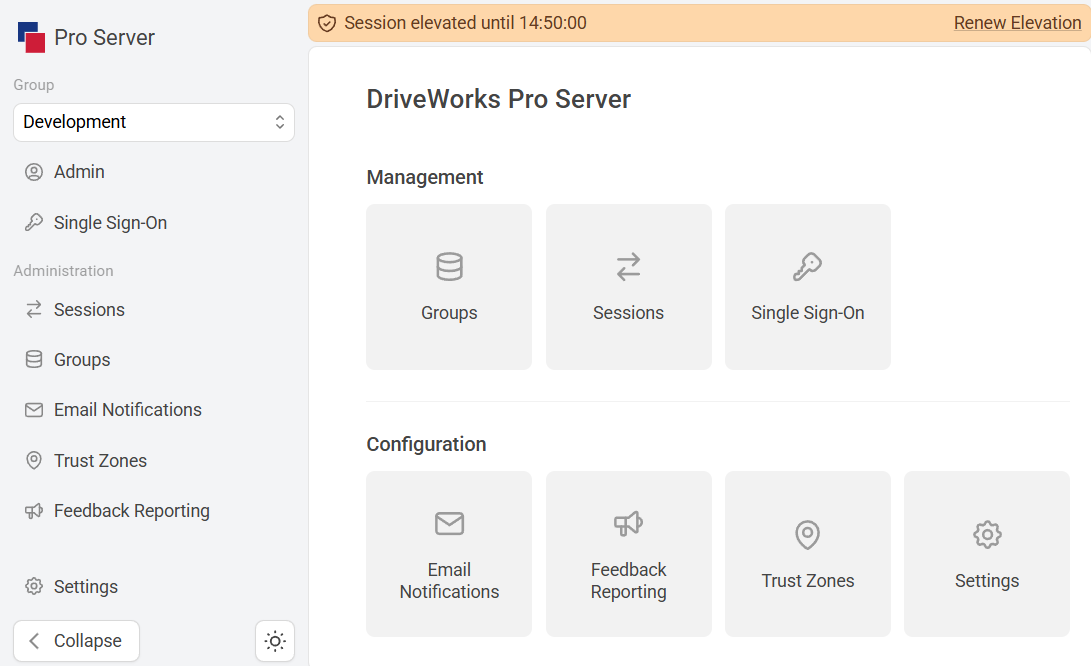
DriveWorks Pro Server Dashboard is the landing page for the Web Application.

DriveWorks Pro Server Dashboard is where Shared Groups are hosted, connections are monitored and SSO is managed.

Further configuration options allow the setting up of email notifications, add extra security for dashboard access, and apply additional settings.

Pro Server Web Application
Connecting To Pro Server and a Shared Group

Connecting to Pro Server Management Console

Pro Server Management Console is accessed from a browser by:

  • On the machine Pro Server is installed on:

    Enter the URL localhost:54500/

  • From another machine with access:

    Enter the URL http://<Machine Name>:54500

See Launch Pro Server Management Console for more information.

Connecting to Pro Server Web Application

Pro Server Web Application is accessed from a browser by:

  • On the machine Pro Server is installed on:

    Enter the URL localhost:54380/

  • From another machine with access:

    Enter the URL http://<Machine Name>:54380

See Launch Pro Server Web Application for more information.

Connecting to a Shared Group

Shared groups, hosted by DriveWorks Pro Server are opened from the Open Group Wizard in any DriveWorks module or tool.

From the option to open a shared group enter the Pro Server Web Application URL.

http://<Machine Name>:54380

See Open a Shared Group for more information.

Learning Resources

Setting up DriveWorks Pro Server

Learn about the latest DriveWorks Pro Server updates and how you can make the most of them in your DriveWorks implementation.

View course

View learning portal

The DriveWorks learning portal is full of interactive learning content. Learn from expert-led courses, take certifications, watch how-to videos, and take the DriveWorks training.

View learning portal

Troubleshooting DriveWorks Pro Server